Palo Alto Networks
ORDR AI Protect gives organizations complete visibility and control over every device connected to their network. It identifies all types of devices—managed, unmanaged, IoT, IoMT, and OT—by analyzing network traffic in real time using deep packet inspection and machine learning. It builds detailed profiles for each device, including its type, operating system, communication patterns, and risk level. As devices change location or behavior, ORDR AI Protect updates these profiles automatically and adjusts policies accordingly. This enables security teams to enforce segmentation policies that adhere to Zero Trust principles without requiring manual intervention.
Palo Alto Networks firewalls secure network traffic by inspecting it at the application layer and enforcing advanced security policies. They protect both incoming and internal traffic, helping organizations implement fine-grained segmentation. In environments where multiple departments or tenants share infrastructure, administrators use Virtual Systems (Vsys) on the firewalls to create logical separation between segments. Panorama, the centralized management tool from Palo Alto Networks, lets teams manage firewall policies and configurations across all locations from a single interface. It allows consistent application of security rules using shared objects, device groups, and tags.
ORDR AI Protect integrates with Palo Alto Networks firewalls and Panorama using APIs. After setting up the connection, ORDR AI Protect imports firewall configuration data, such as zones, address objects, tags, Vsys definitions, and device groups. It then maps its discovered devices to these elements based on IP addresses, VLANs, or other network identifiers.
ORDR’s bidirectional integration with Palo Alto Networks allows organizations to secure IoT and OT devices by implementing segmentation across the enterprise. ORDR discovers, classifies, and groups all devices, automatically mapping them into their respective zones, areas, and cells using PAN-OS tags. It then dynamically generates NGFW security policy rules using these tags to deliver streamlined microsegmentation.
Administrators configure policy profiles in ORDR AI Protect. These profiles define allowed communications, restricted ports, or network access controls. ORDR AI Protect assigns these profiles to firewall tags or Vsys identifiers. It then pushes the policy intent directly to the firewall or Panorama for centralized distribution. In Vsys environments, ORDR AI Protect identifies the virtual system associated with each device and applies the corresponding policy profile. This mapping allows firewalls to enforce access control based on the device’s actual function and network location.
In Panorama-managed environments, ORDR AI Protect synchronizes tags with Panorama and links them to device groups. It assigns devices to these tags and ensures Panorama applies the correct policy profile across all relevant firewalls. As network conditions change or devices shift roles, ORDR AI Protect reclassifies the devices, updates their tags, and enforces the appropriate policies. It removes the need for manual policy updates and minimizes configuration errors.
ORDR AI Protect automates microsegmentation by dynamically applying security policies to devices based on their real-time behavior. It ensures that each device always has the correct access control policy, even when it changes IP address, moves between VLANs, or connects from a new location. It uses the Palo Alto Networks firewall infrastructure to enforce segmentation boundaries and block unauthorized communication.
This integration enables organizations to reduce their attack surface, limit lateral movement, and strengthen Zero Trust implementations. ORDR AI Protect drives firewall policy decisions using real-time device intelligence. Palo Alto Networks firewalls enforce those policies consistently across the environment. Together, they deliver a scalable, automated, and adaptive security solution that protects the enterprise without manual intervention.
PAN Configuration in ORDR AI Protect
PAN configuration in ORDR AI Protect establishes a secure connection between the platform and the Palo Alto Networks environment, enabling policy-based integration. This setup requires entering essential connection parameters, such as server details and user credentials, with the appropriate access rights. Once the connection is established, ORDR AI Protect synchronizes relevant configuration data from the firewall management system. This enables the platform to associate discovered devices with existing network structures and support the automated application of policies based on real-time device context. The integration ensures dynamic segmentation and centralized policy enforcement across the network.
- Log in to ORDR AI Protect.
- Navigate to the Integrations tab, type Palo Alto Networks into the search field, and press Enter.
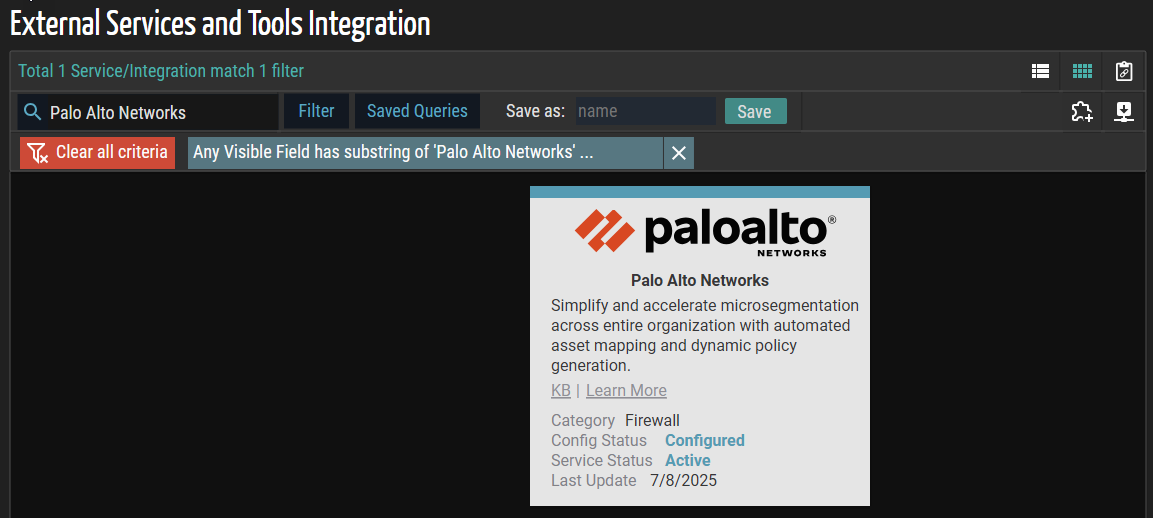
- Click the Palo Alto Networks application card.
The Palo Alto Networks (Service Detail) panel appears.
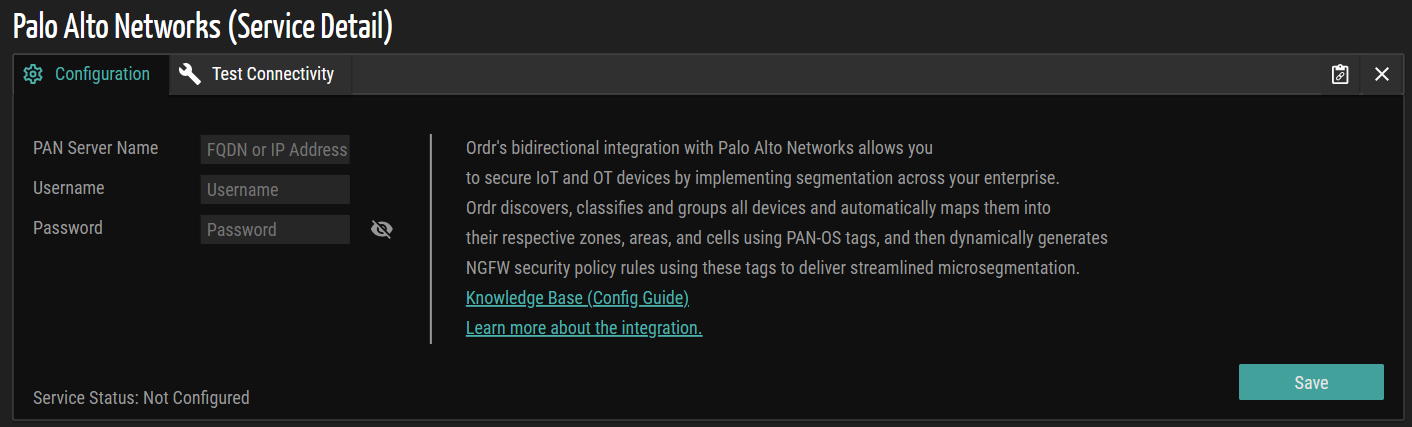
- Navigate to the Configuration tab and provide the necessary information for the following fields:
- PAN Server Name - Enter the fully qualified domain name (FQDN), hostname, or IP address of the Palo Alto Networks server.
NOTE: Ensure that you provide the fully qualified domain name (FQDN) or IP address of the Panorama server when configuring a Panorama-based deployment. If the integration is for a virtual system (Vsys), enter the FQDN or IP address of the corresponding Vsys server. For standalone firewall configurations, specify the IP address or FQDN of the individual Palo Alto Networks firewall device.
- Username - Enter the administrator-level username with API access privileges to the PAN firewall, Panorama, or Vsys server. The account must have sufficient permissions to enable ORDR AI Protect to retrieve configuration data and apply policy profiles during the integration process.
- Password - Enter the password corresponding to the administrator username specified in the Username field.
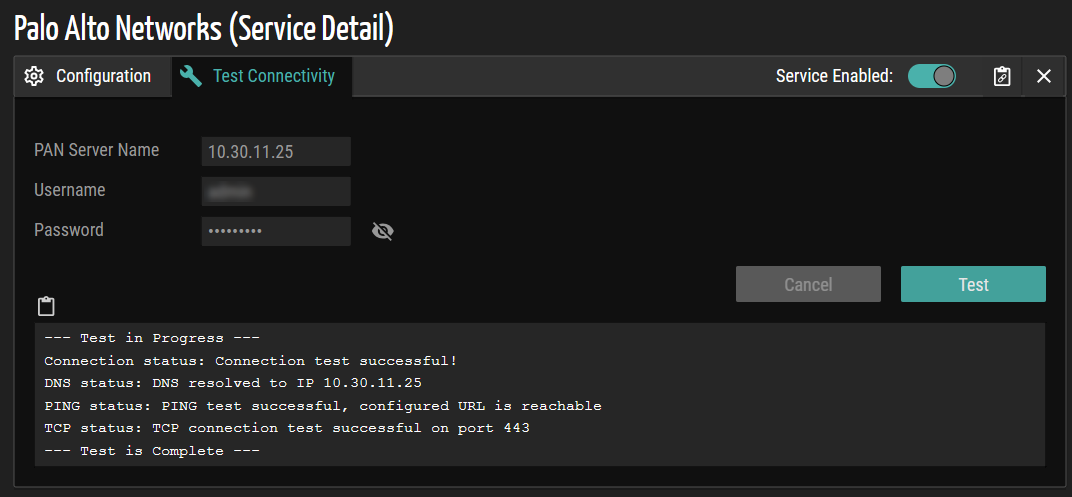
- Click the Save button to save the configuration settings. Once the configuration is successful, the service status displays an 'Active' message, indicating that the integration is configured and active. If the configuration fails, the status is displayed as 'Configured and Error.' To ensure the configured settings and credentials function correctly, click the Test Connectivity tab and verify that the test succeeds.
Test Connectivity
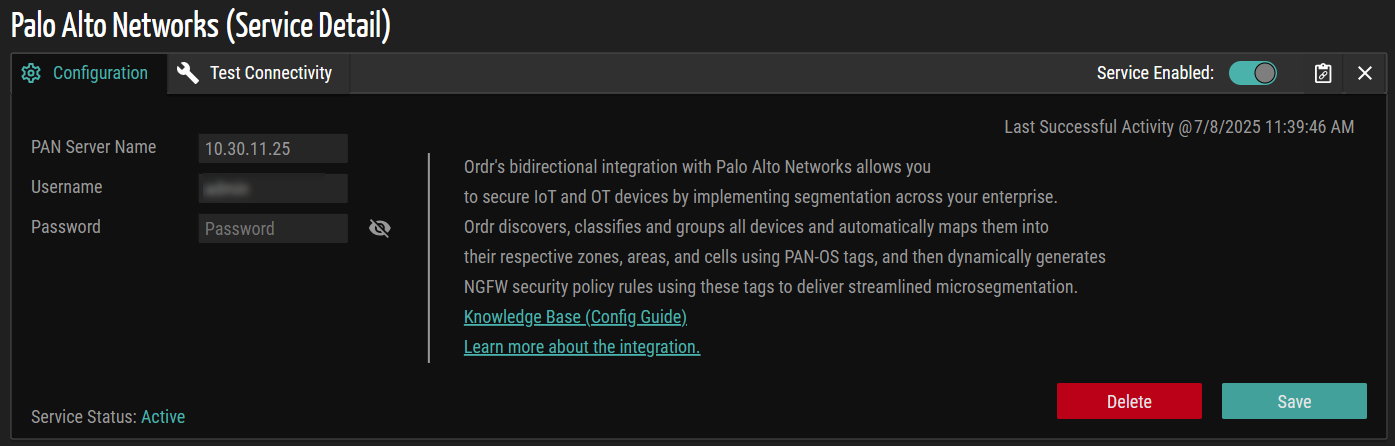
The Test Connectivity option validates the credentials and verifies the connection between ORDR AI Protect and PAN.
The system automatically populates default values for the PAN Server Name and Username fields during initial configuration. This reduces manual input and simplifies setup. To validate the configuration, navigate to the Test Connectivity tab and click the Test button. The system uses the current configuration to verify the connection between ORDR AI Protect and the PAN platform. If the connection is successful, a confirmation message appears, indicating that connectivity is established. If the connection fails, the system displays a detailed error message to assist with troubleshooting.
Implementation of Panorama in ORDR AI Protect
ORDR AI Protect integrates with Panorama to deliver unparalleled visibility and protection through advanced IoT/OT device discovery, classification, and the automation of secure access control and micro-segmentation policy to all networked users and devices across the enterprise campus, industrial zones, data center, and internet edge.
Assign Policy Profiles to Panorama Tags
- In the ORDR AI Protect application, go to the top navigation bar and click Profiles, then click Policy Profile.
The Policy Profile List page appears. - Click a profile from the Policy Profile List page.
NOTE: The creation of policy profile(s) is described in Policy Profile.
- Go to the Details tab of the profile to map to a firewall tag. In this example screenshot, the ‘Pacemaker’ is selected.
- Select the appropriate firewall tag from the Firewall Tags drop-down list.
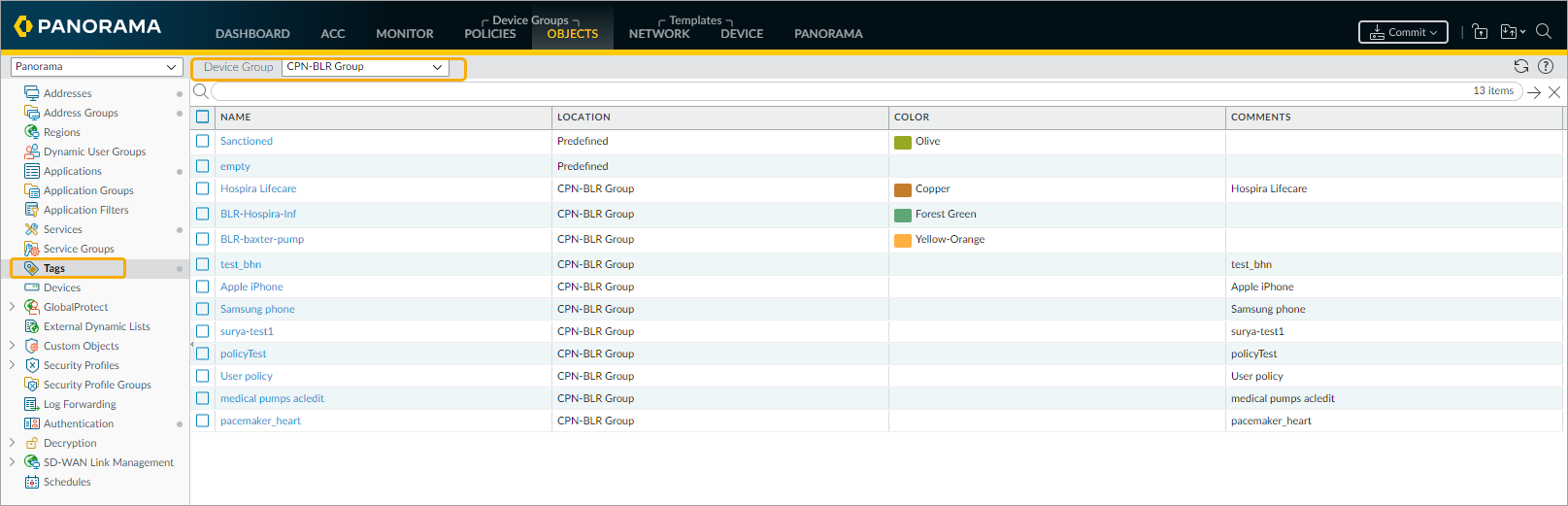
NOTE: A list of firewall tags defined in Panorama is automatically populated.
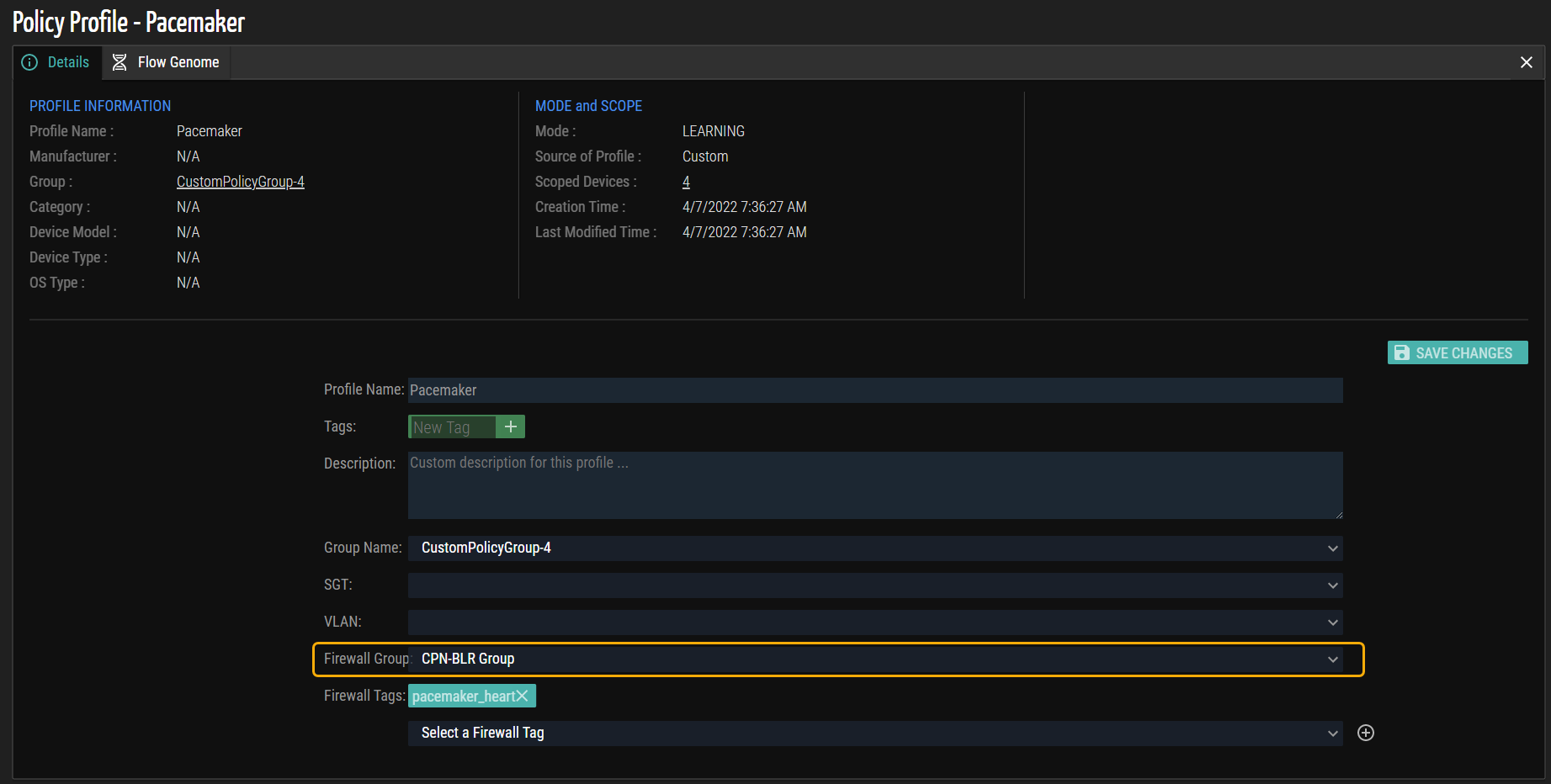
The following is an example screenshot of the predefined firewall tags configured in Panorama.
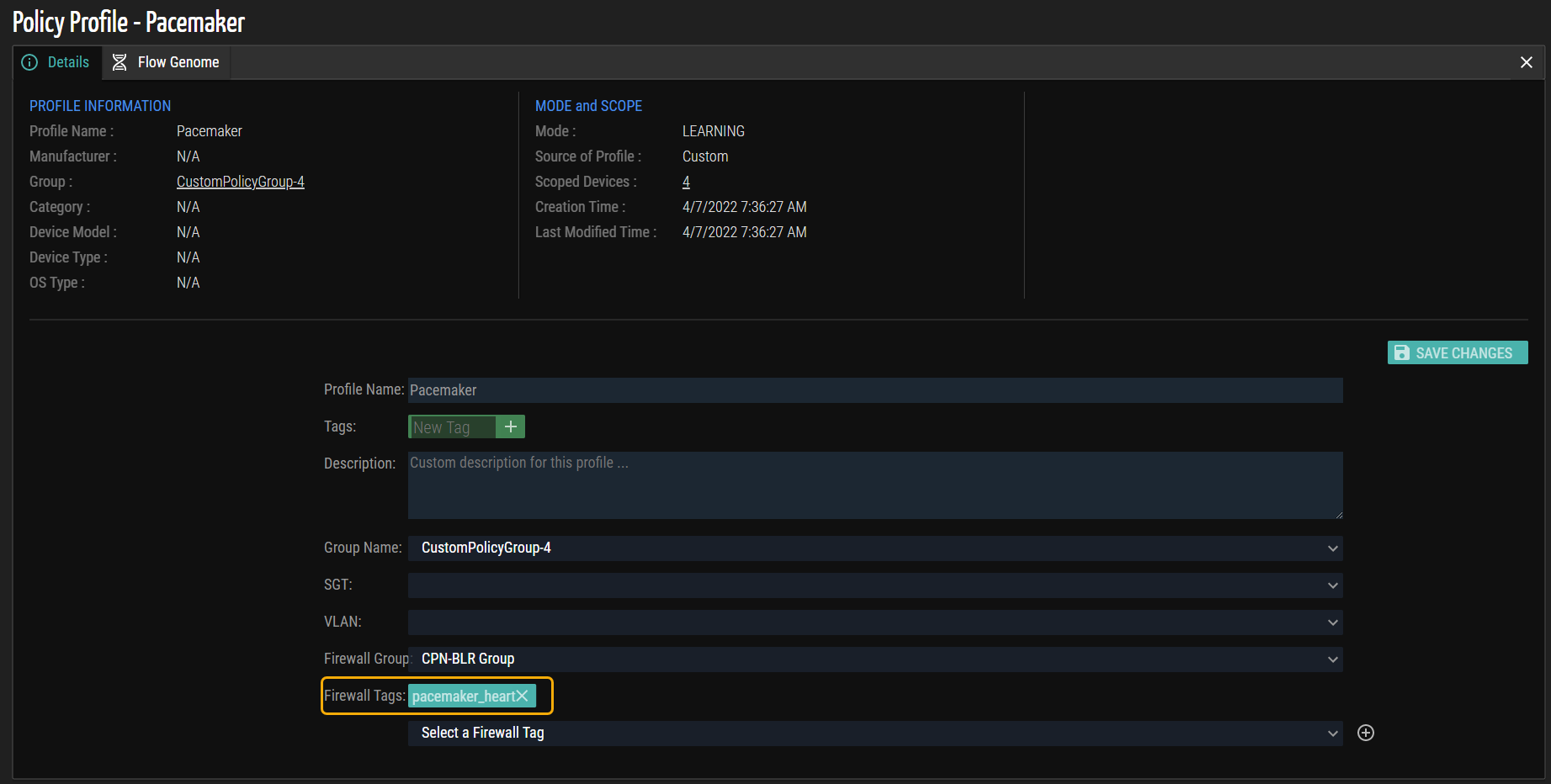
- (Optional) To create a custom firewall tag, enter the PAN tag name in the Firewall Tags field. In this example, ‘pacemaker_heart’ is the new firewall tag name.
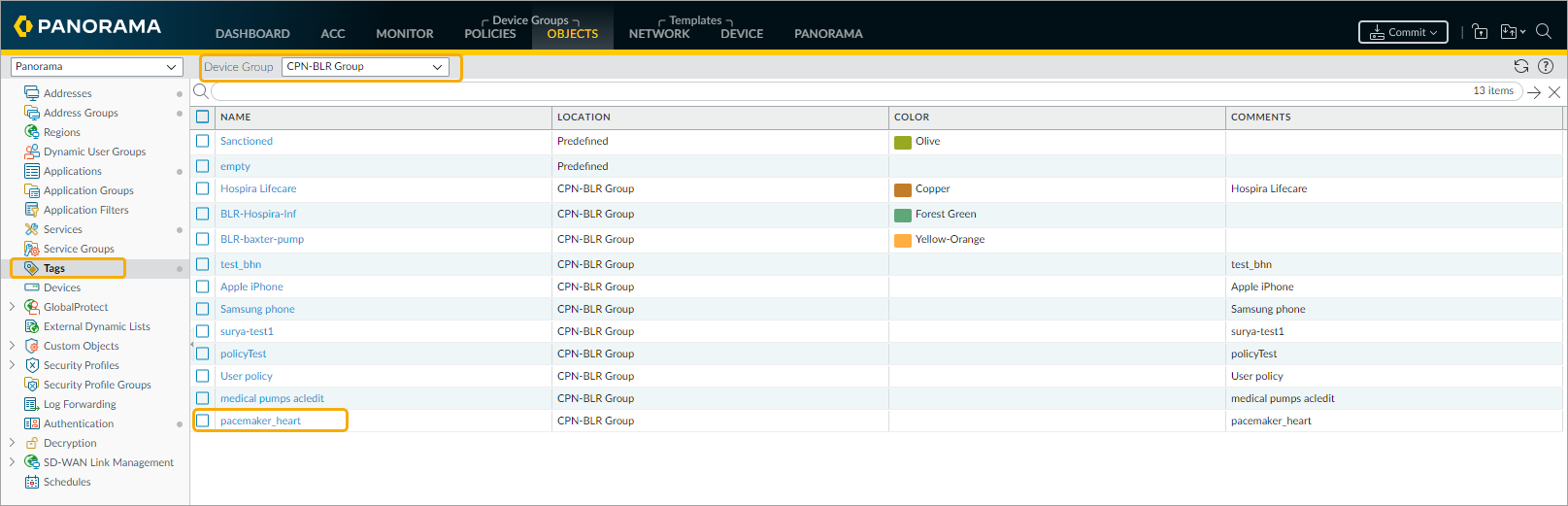
- Click Save Changes to update the firewall tag. The firewall tag ‘pacemaker_heart' is updated in the Device Group‘CPN-BLR Group’ as shown in the example screenshot.
Verify Dynamic Device Groups and Tags
- Each IP Address matching a Policy Profile in ORDR AI Protect is automatically linked with its assigned Firewall Tag and automatically populates the Dynamic Address Groups list in Panorama. In this example screenshot, the list of IP addresses matches the Policy Profile as ‘Pacemaker’.
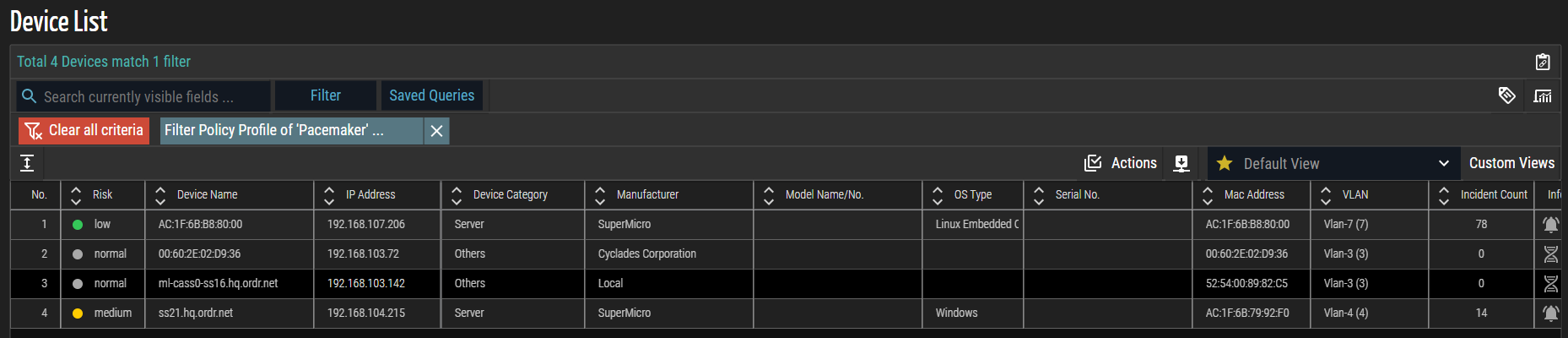
NOTE: Any devices regrouped or removed from the ORDR AI Protect Policy Profile are deleted from the Firewall Tag and its corresponding Dynamic Address Group list.
- Log in to the Panorama firewall web interface.
- Click Objects > Address Groups.
- Choose the firewall group from the Device Group drop-down list based on the firewall group configured in SCE.
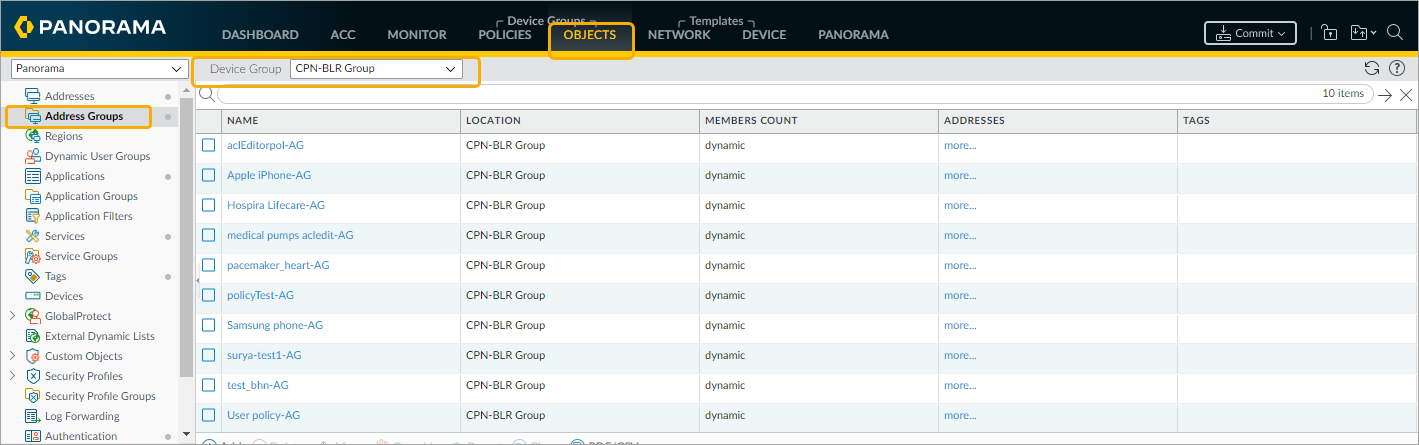
- From the list of Address Groups, select the updated Address Group and click more to view the IP addresses associated with it. In this example, ‘pacemaker_heart-AG‘ is selected. The list of IP addresses matches the devices classified as ‘pacemaker_heart’ in ORDR AI Protect, appears.
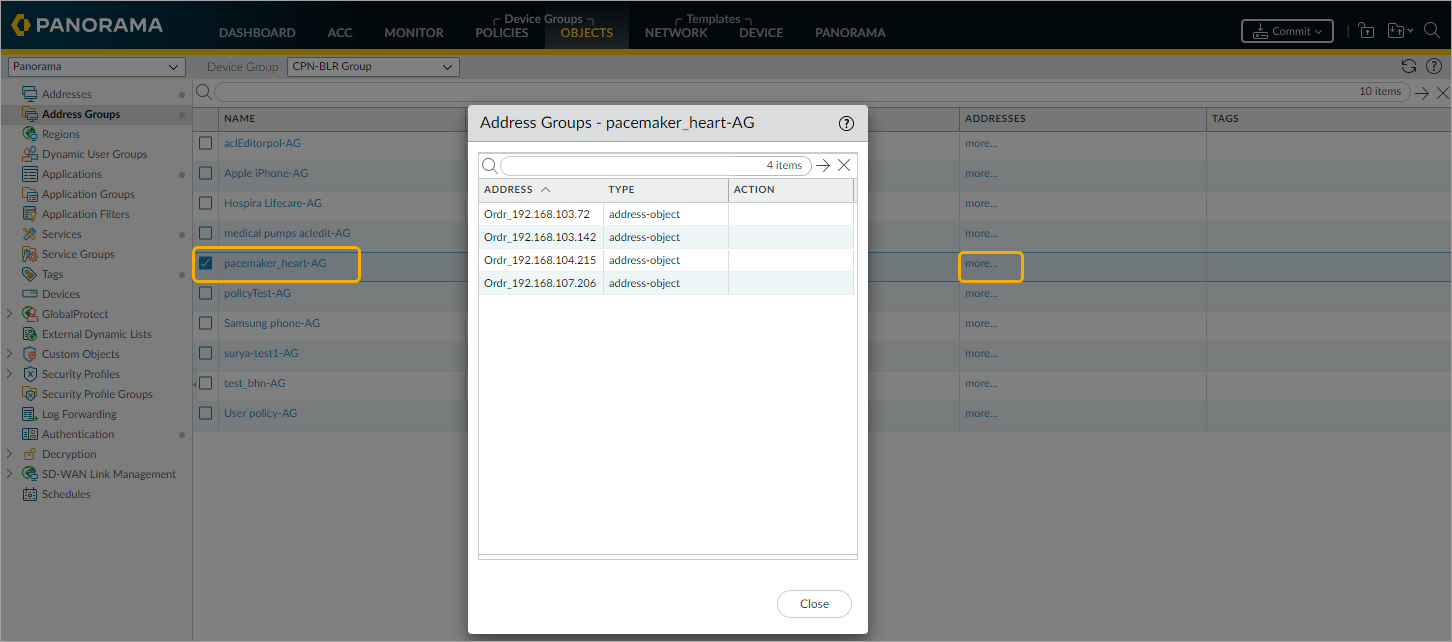
- Click Close.
Implementation of Vsys in ORDR AI Protect
Vsys, also known as Virtual System, is used to create logical divisions of virtual firewall instances in a single pair of physical Palo Alto firewalls. Instead of using multiple firewalls, you can use single pair of firewalls for high availability and enable multiple logical firewall instances.
Each Vsys can have its security policies, interfaces, and functions that the firewall provides. Using Vsys, administrators can control certain parts of the network and firewall configuration.
The integration with Vsys enables you to assign Policy Profiles and Device Profiles to firewall tags. Additionally, you can create a dynamic security policy based on tags. Tags can be used to categorize and organize managed objects more easily. PAN Firewall allows you to assign tags to address objects, address groups (static and dynamic), zones, services, service groups, and security policy rules.
The tags are classified into two categories: predefined tags and custom tags. Predefined tags are those that are created in the firewall by administrators. While custom tags are those that are created by you in ORDR AI Protect and visible to others. For example, if you want to customize security policies related to a profile, Baxter-Sigma Spectrum-Infusion Pump, you can define a custom Firewall tag name ‘<vsys1>hq ordr medical' and then define security policies. The custom tag follows the format of ‘<vsys-id>tag-name‘.
ORDR automatically discovers and classifies all OT, IoT, and non-IoT devices. The devices are mapped to the predefined firewall tags or newly created tags generated by ORDR AI Protect. When new devices are connected to the network, they are automatically classified and updated in Vsys with the proper tag.
Assign Policy Profiles to Vsys Tags
NOTE: Administrators can also assign Policy Profiles to Vsys tags by clicking Profiles > Policy Profile.
- In the ORDR AI Protect application, go to the top navigation bar and click Profiles, then click Policy Profile.
The Policy Profile List page appears. - Click a profile from the Policy Profile List page.
- Go to the Details tab of the profile to map to a firewall tag. In this example screenshot, the ‘Infusion pumps’ is selected.
- Select the appropriate firewall tag from the Firewall Tags drop-down list.
NOTE: A list of firewall tags defined in Vsys is automatically populated.
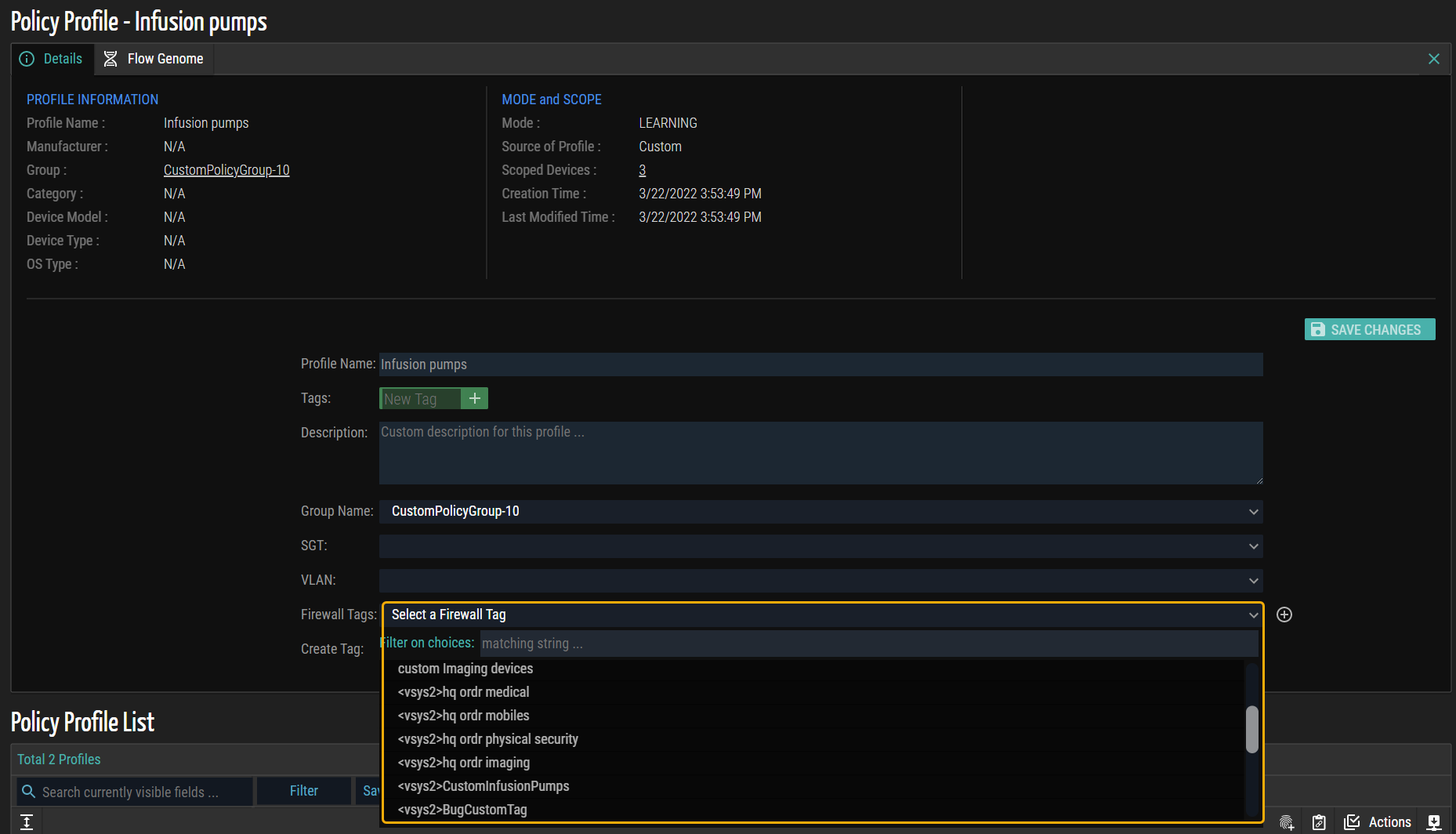
The following is an example screenshot of the predefined firewall tags configured in Vsys.
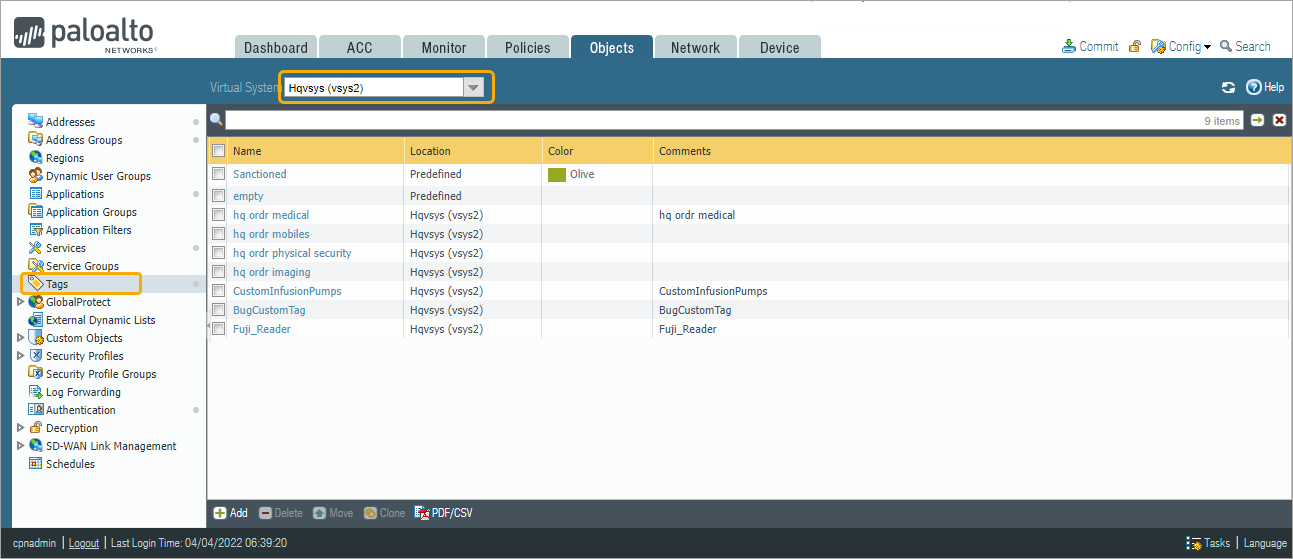
- (Optional) To create a custom firewall tag, enter the PAN tag name in the Firewall Tags field. The format is ‘<vsys-id>tag-name‘. In this example, ‘<sys4>Infusionpump_1’ is the new firewall tag name.
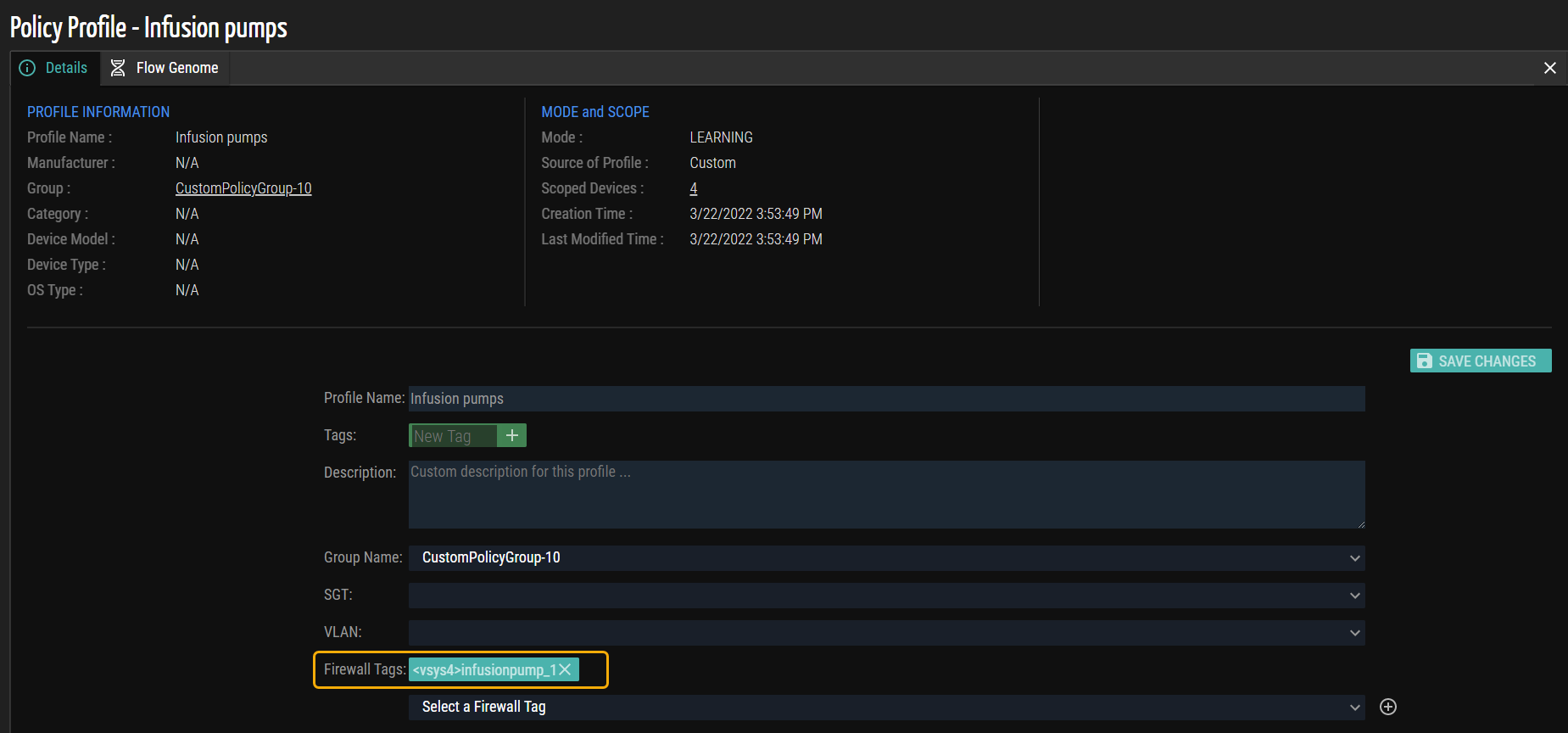
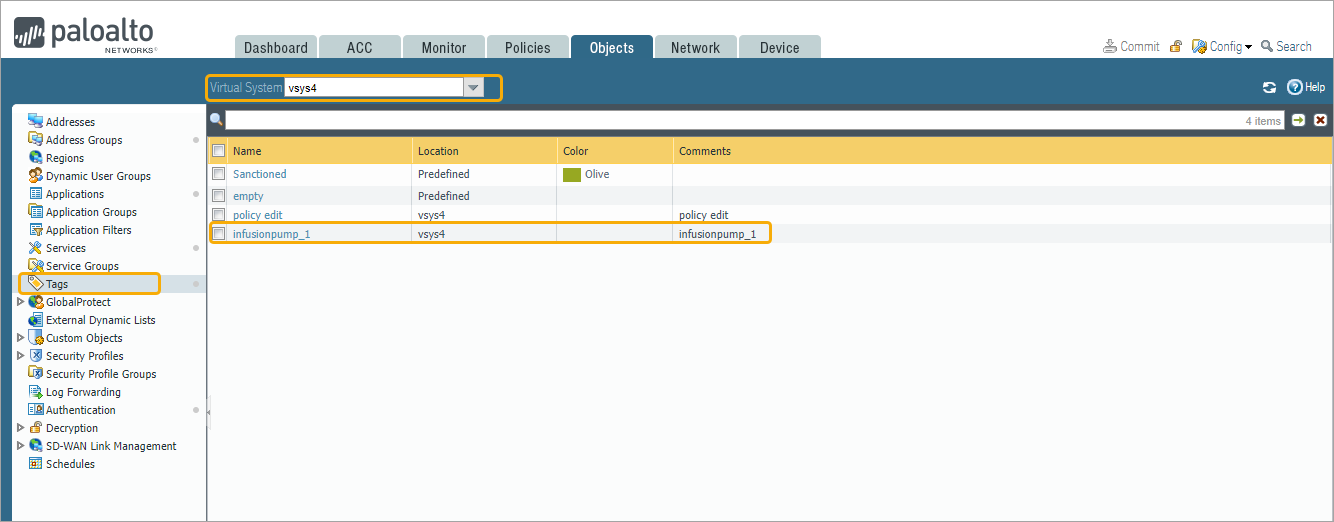
- Click Save Changes to update the firewall tag. The firewall tag ‘<sys4>Infusionpump_1’ is updated in the ‘vsys4’ as shown in the example screenshot.
Verify Dynamic Device Groups and Tags
- Each IP Address matching a Policy Profile in ORDR AI Protect is automatically linked with its assigned Firewall Tag and automatically populates the Dynamic Address Groups list in Vsys. In this example screenshot, the list of IP addresses matches the Policy Profile as ‘Infusion Pumps’.
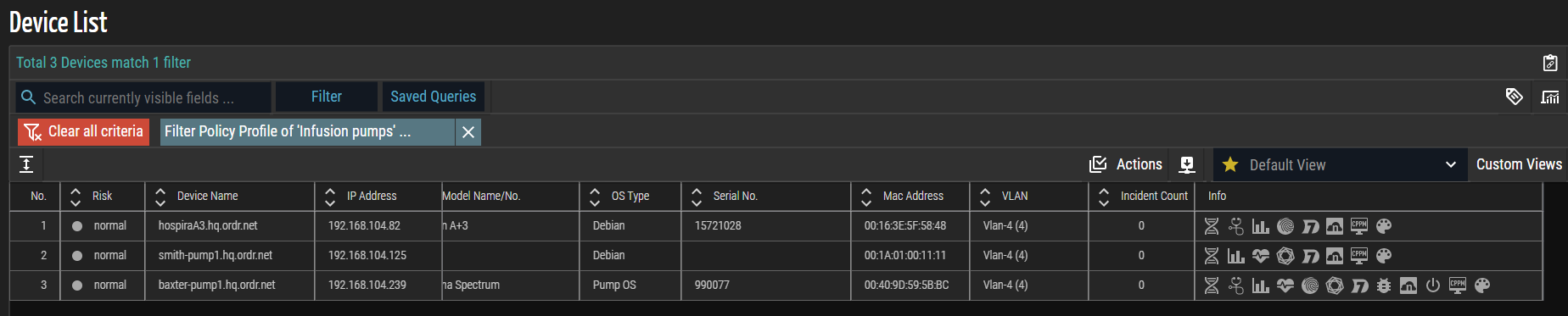
NOTE: Any devices regrouped or removed from the ORDR AI Protect Policy Profile are deleted from the Firewall Tag and its corresponding Dynamic Address Group list.
- Log in to the PAN firewall web interface.
- Click Objects > Address Groups.
- Choose the firewall tag from the Virtual System drop-down list based on the firewall tag configured in SCE.
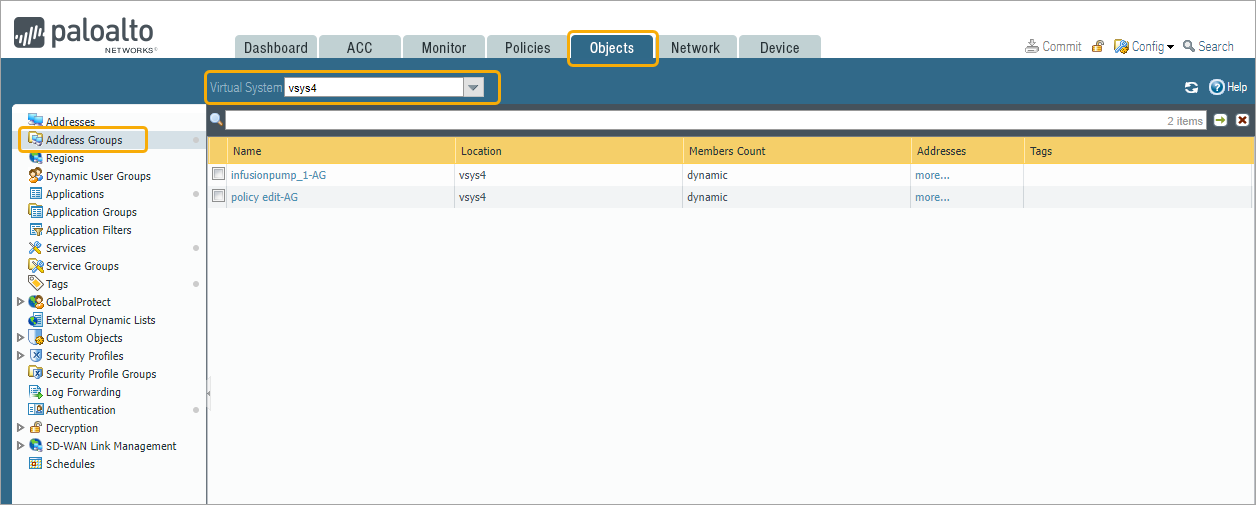
- From the list of Address Groups, select the updated Address Group and click more to view the IP addresses associated with it. In this example, ‘infusionpump_1-AG‘ is selected. The list of IP addresses matches the devices classified as ‘infusionpump_1’ in ORDR AI Protect, appears.
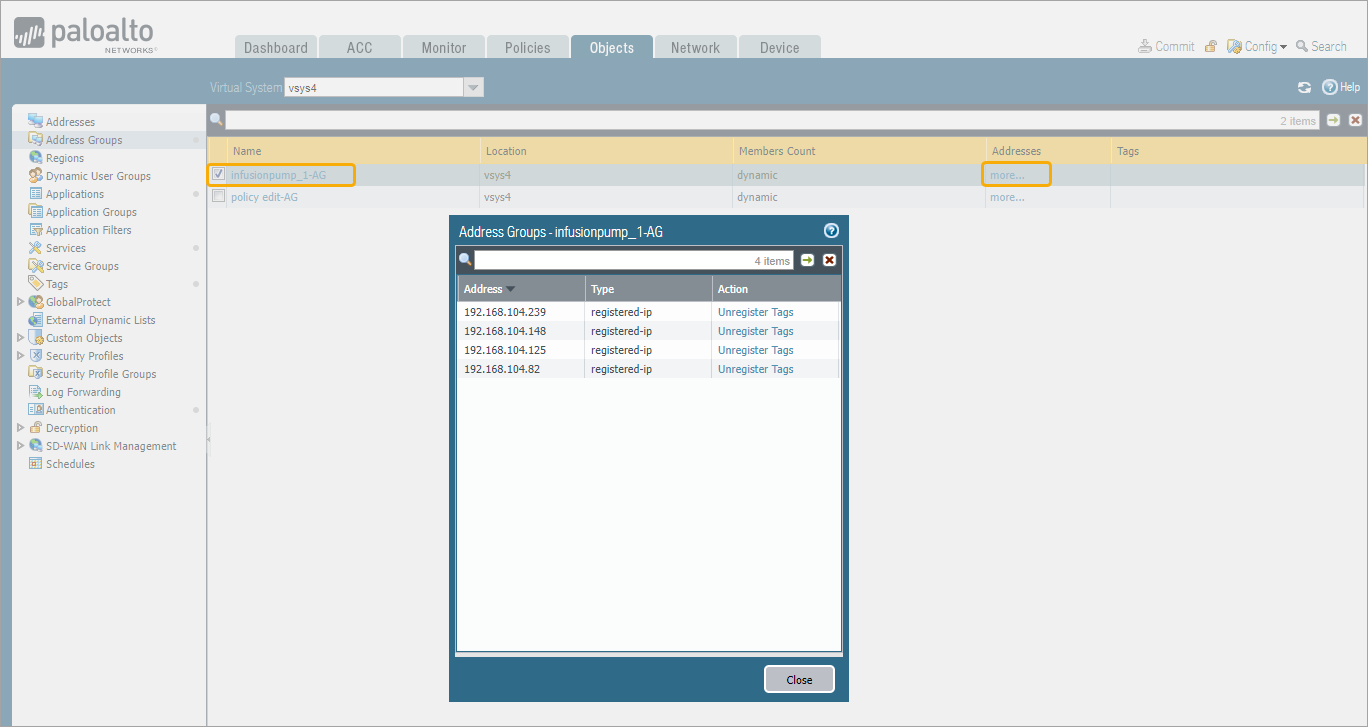
- Click Close.
© 2026 ORDR. All Rights Reserved.