Email (SMTP)
The Email service feature in ORDR SCE allows you to enable email notifications for system alerts. When a security incident is detected on a device, an email notification is sent via SMTP to the configured recipients. You can configure email client settings for alarms and device notifications by using this feature.
Additionally, the Email service supports two-factor authentication (2FA). When you enable 2FA, the user will receive an activation key via email.
Configure Email Service
To receive email notifications when an alarm is triggered, you must specify email recipients and configure SMTP mail server settings.
- On the top navigation bar, click Integrations.
The External Services and Tools Integration page appears.
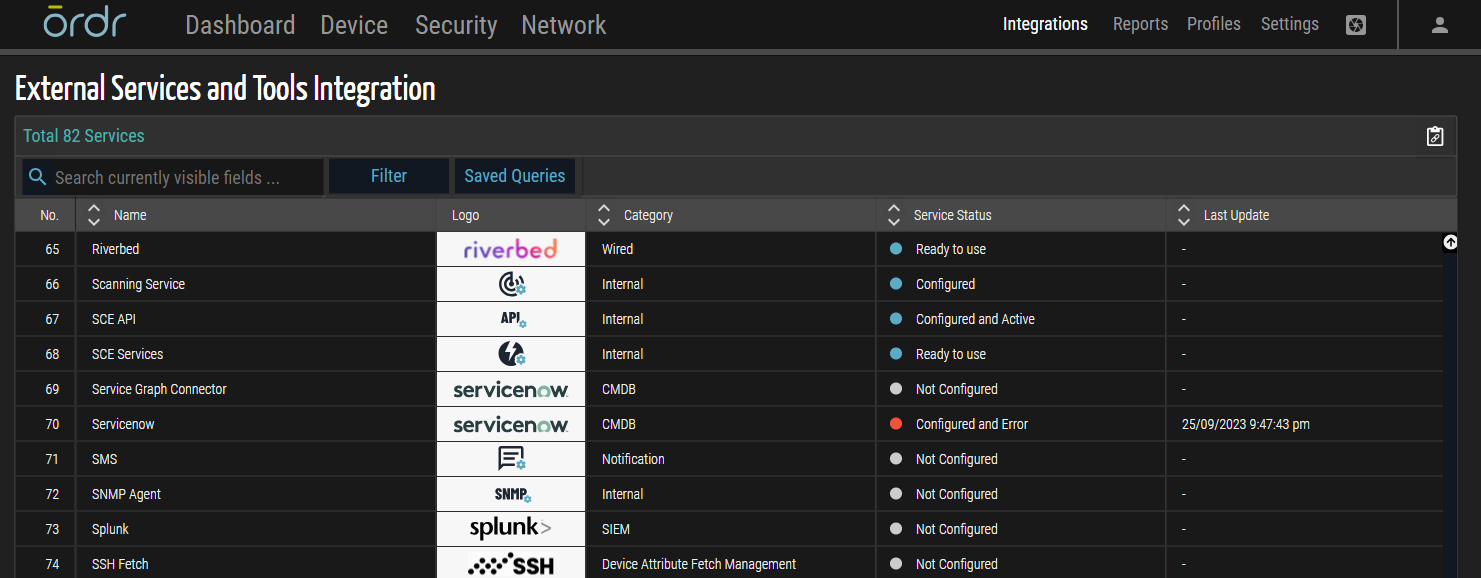
- Type Email into the search box, then click Email from the table list.
The Email (SMTP) (Service Detail) panel appears.
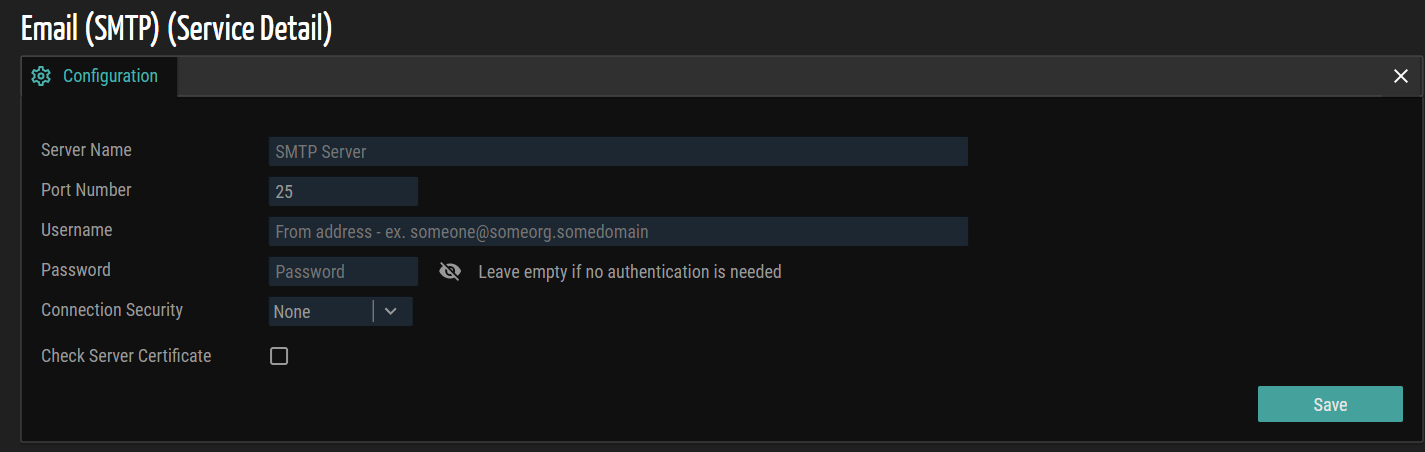
- Under the Configuration tab, provide the values for the following fields:
- Select the Check Server Certification check box to authenticate the identity of the server.
- In the Server Name field, enter the SMTP mail server name.
- In the Port Number field, enter the port number of the SMTP mail server.
- In the Username and Password fields, enter the username and password for the SMTP mail server.
- In the Password field, enter the password for the SMTP mail server.
- From the Connection Security drop-down list, select the security level of the SMTP server.
- STARTTLS - is an encryption protocol extension that helps to enable TLS/SSL secure connection over the insecure LDAP connection.
- SSL or TLS - is an encryption protocol to protect data sent across the network.
- Select the Check Server Certification check box to authenticate the identity of the server.
- Click Save. When the configuration setting is successful, the message 'Successfully saved changes' appears as well as the To Address field.
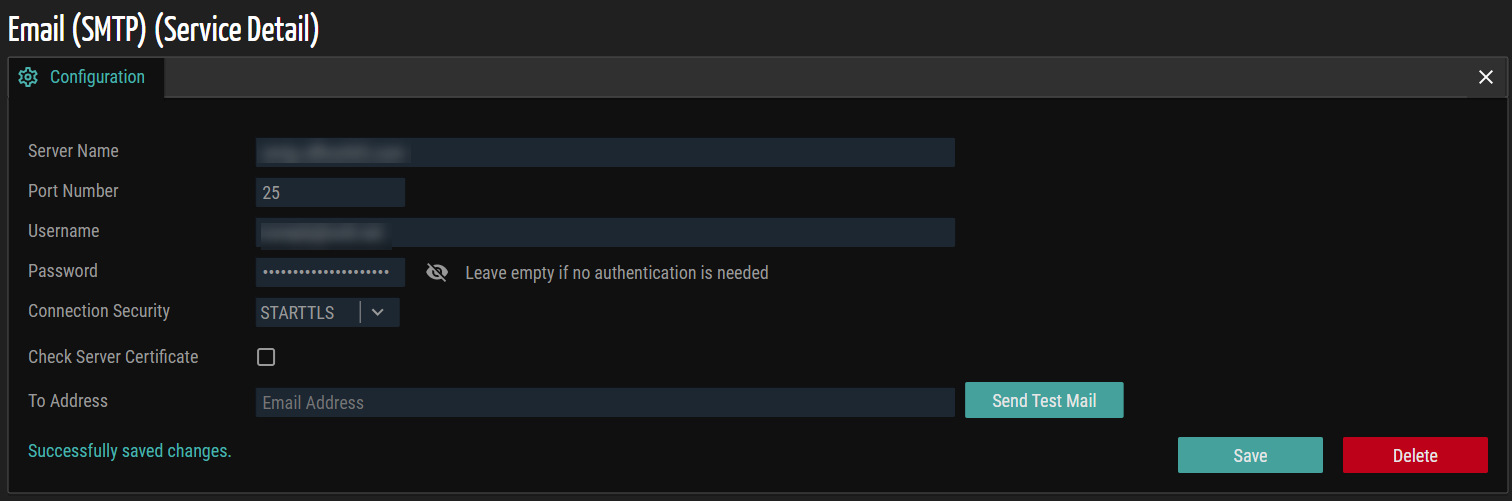
- In the To Address field, enter a valid email address that the SMTP server will identify as the sending email address.
- Click Send Test Mail to send a test email to confirm that your SMTP mail server settings are correct.
- (Optional) Click Delete to remove the configuration setting.
© 2026 ORDR. All Rights Reserved.