Introduction
The release notes will help you learn about new features, known and addressed issues as you become more comfortable with the latest version. Use this document in conjunction with the Ordr SCE application's online documentation.
New Features and Enhancements
This section describes new features and enhancements introduced in Ordr SCE 8.2.0 (R2).
Microsoft Defender Integration
In this release, Ordr introduces support for Windows Defender integration, enabling seamless collaboration between the two platforms. By combining Ordr's comprehensive device visibility and management capabilities with Windows Defender's security features, users can strengthen their network security and enhance threat response. The integration allows organizations to leverage Windows Defender's advanced threat detection and prevention capabilities while benefitting from Ordr's insights into device details, vulnerabilities, and threat intelligence, providing a comprehensive and proactive approach to cybersecurity.
Cisco Firepower Integration
This release introduces the seamless integration of Ordr with Cisco Firepower Management Center, a unified security platform. This collaboration improves your organization's security by consolidating intrusion prevention, firewall, and application control capabilities into a single, streamlined solution. With Ordr's support for Cisco Firepower, you gain centralized control and comprehensive protection across network perimeters, endpoints, and cloud environments. This integration empowers you to defend against evolving threats while optimizing operational efficiency proactively.
Cisco Spaces Integration
In this release, Ordr introduces seamless integration with Cisco Spaces. With this integration, Ordr and Cisco Spaces have joined forces to provide organizations with an unparalleled solution for understanding, managing, and optimizing their physical spaces.
Ordr empowers organizations to gain deep insights into how their spaces are utilized, enabling data-driven decisions that enhance workspace efficiency and improve employee experiences. Ordr's expertise is collecting and analyzing data from various sensors and devices, providing organizations with invaluable information to transform their workspace management.
Cisco Spaces is a cloud-based platform designed to offer insights into the utilization and performance of physical spaces. It leverages various devices, including cameras, Wi-Fi access points, and occupancy sensors, to gather data that helps organizations understand how their spaces are used. This data is valuable for making informed decisions about space optimization and improving the workplace experience.
The combined power of Ordr and Cisco Spaces allows organizations to access real-time insights into their physical spaces. This means making decisions promptly, optimizing space utilization, and ensuring a dynamic and responsive workspace.
ServiceNow VR Integration
In this release, the integration between Ordr and ServiceNow Vulnerability Response (VR) represents a significant advancement in vulnerability management. This integration empowers organizations to automate and expedite the remediation of vulnerabilities effectively. Ordr's comprehensive device discovery and profiling capabilities extend to IoT, IoMT, and OT devices, offering immediate real-time insights into their risk and behavior. ServiceNow Vulnerability Response further enhances efficiency by prioritizing vulnerabilities according to their potential impact on the organization, streamlining the remediation process through automated workflows.
SNOW Bi-directional Ticketing Integration
This release introduces a seamless bidirectional integration with SNOW (ServiceNow). This integration signifies a significant advancement, empowering organizations to synchronize incident information between these two central systems effortlessly. This implies that when an alarm within SNOW reaches a resolution, closure, or cancellation state, it automatically clears the corresponding alarm in SCE, offering users real-time visibility.
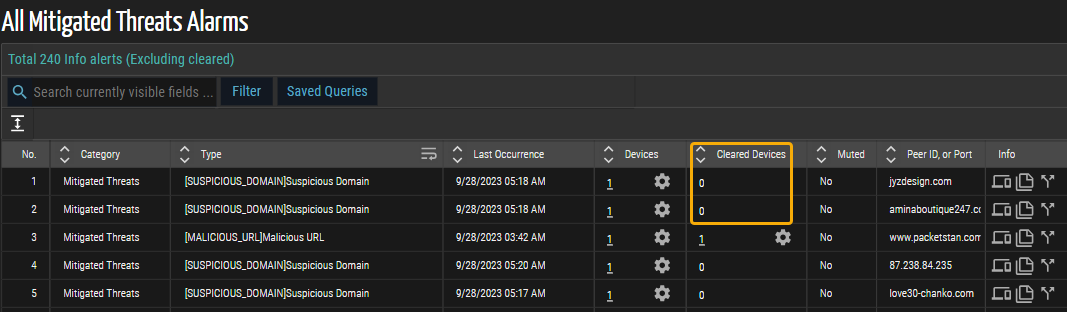
Figure 1: Clearing Devices
Fetch Location On Floorplan
This release introduces the Fetch Location On Floorplan bulk action to select multiple devices and retrieve their respective locations directly on the floorplan. This enhancement improves the efficiency and convenience of gathering device locations and operates when Cisco Spaces is configured.
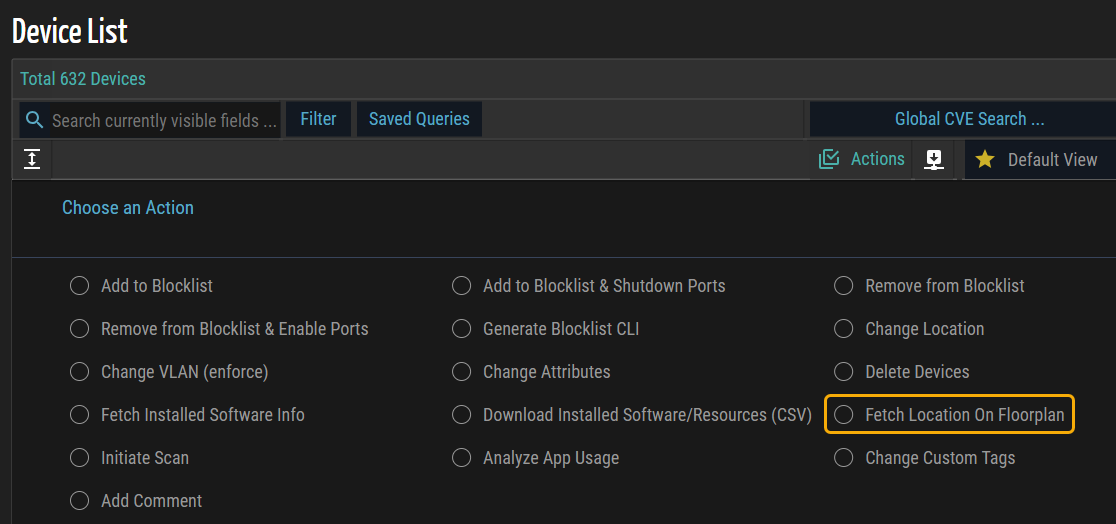
Figure 2: Fetch Location on Floorplan
Visual Location Mapping
This release presents the Buildings/Floors page, which offers users comprehensive visibility and management capabilities for campuses, buildings, floors, access points, and endpoints within the network infrastructure. The panel shows the hierarchy of campuses, buildings, and floors. One notable feature of the Buildings/Floors page is the visual representation of floors within each building. Users can view floor maps, gaining an intuitive and spatial understanding of the network layout. Each floor image displays relevant information, including the number of access points and end devices on that floor. Clicking on an image expands the floor mapping, revealing the precise location of devices and access points within the selected floor.
Administrators can easily track and monitor the physical layout of the network environment, troubleshoot issues, and enhance overall network operations. Administrators must configure Cisco Prime, Cisco Spaces, and Cisco DNA Center to access this page.
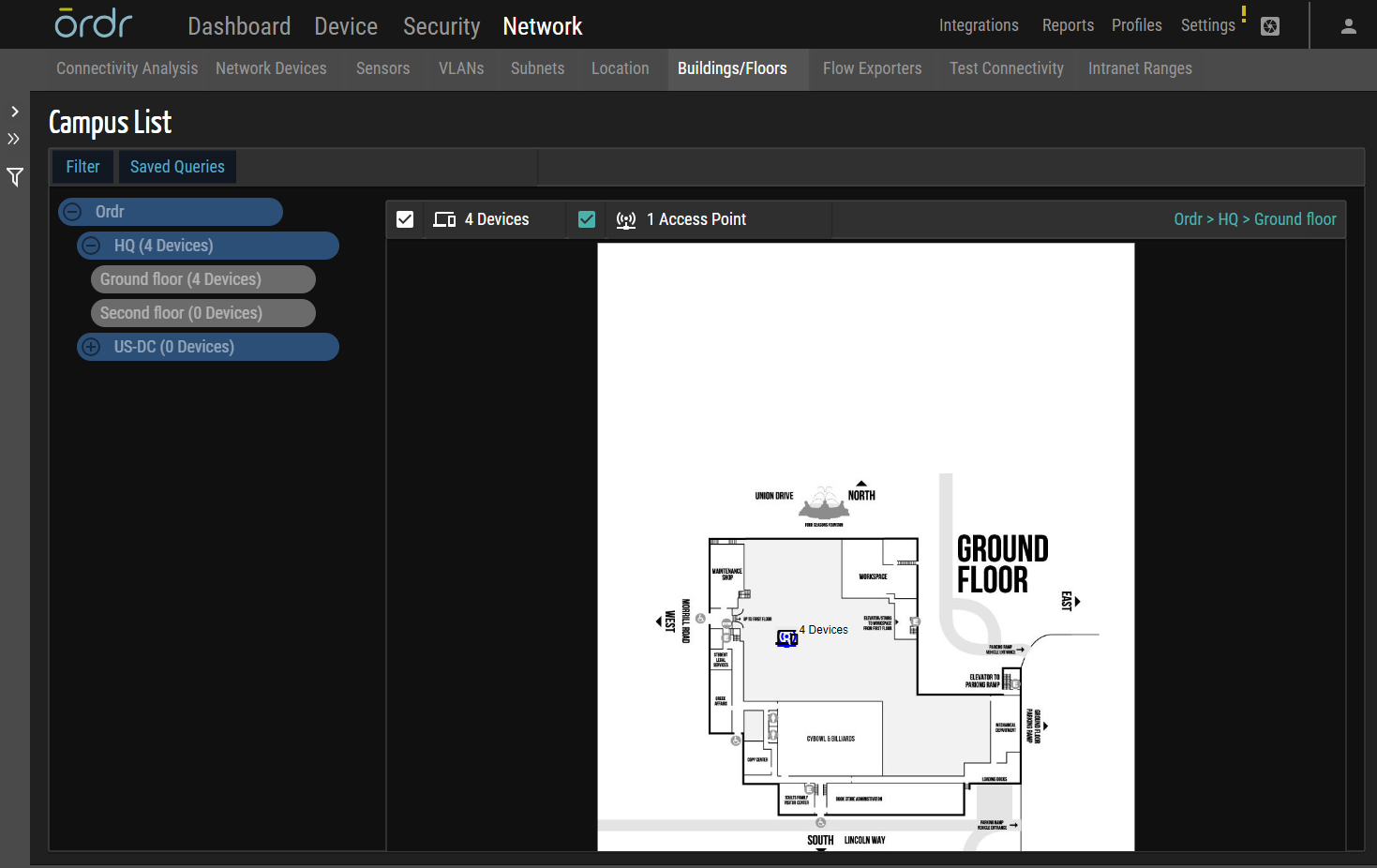
Figure 3: Buildings and Floors
Clicking on the devices and APs on the floor map lets users jump to the device browser panel. The Info column of the device browser panel and network device browser panel contains floor map icons. Clicking on these icons brings up the detail panel with the floor map tab, which displays the floor plan of the device/AP's location and its position on the floor. Additionally, the tab provides information about the specific floor, building, and campus it is located in.
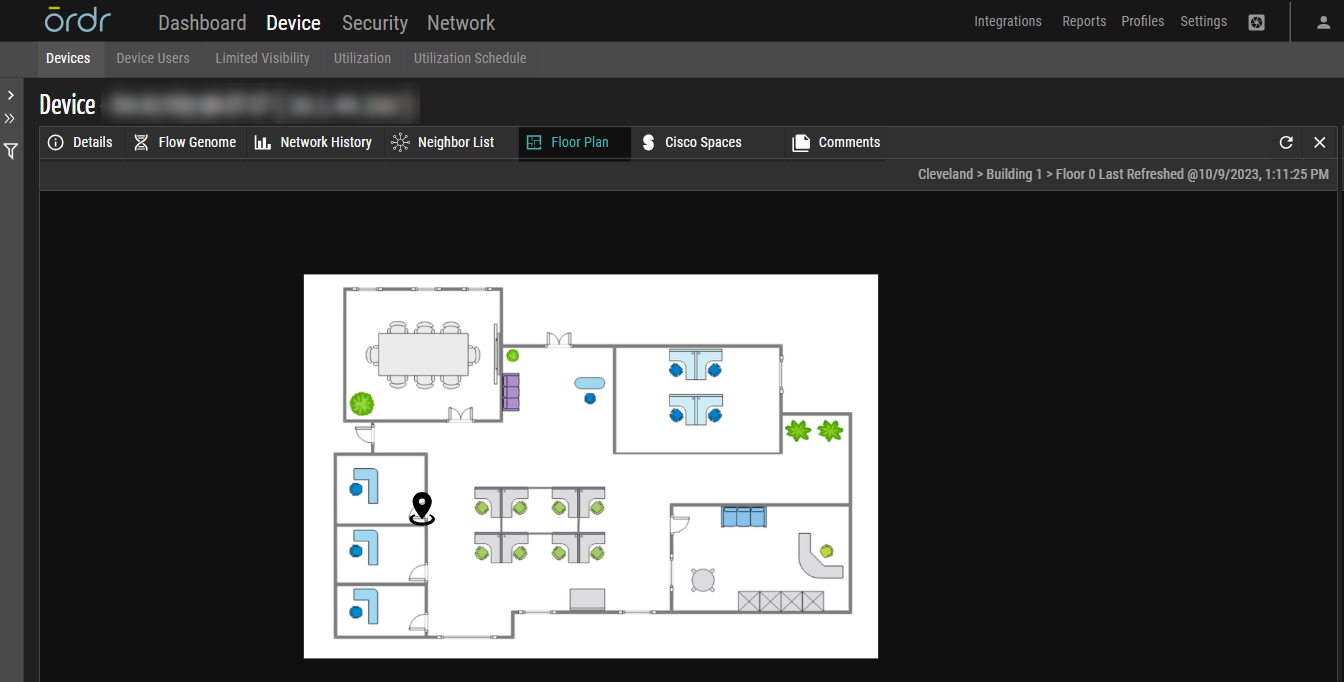
Figure 4: Floor Plan
Recently View Devices
This release adds a new feature allowing users to access their Recently Viewed Devices. When users navigate to the Devices list page, clicking on any device row triggers the appearance of a Recently Viewed Devices icon. Clicking this icon grants users access to a list of recently visited devices. This feature is available only during the current session; the option is not visible if you log off and log back in.
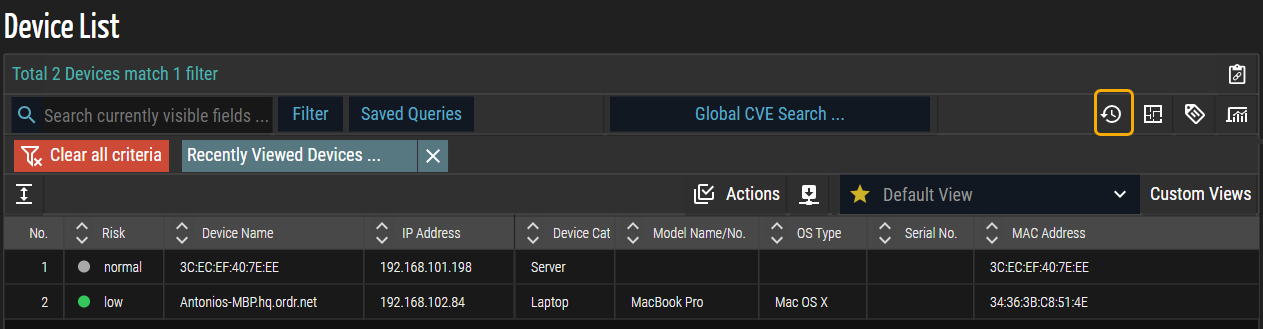
Figure 5: Recently View Devices
Enhanced Location Management
In this release, Ordr introduces three new device fields, namely Building, Floor, and Zone, enhancing your location management capabilities. These additions significantly enhance your device management capabilities, giving you more control and precision.
- Bulk Action: To streamline your workflow, Ordr introduces robust support for bulk editing for Buildings, Floors, and Zones. This feature lets you update multiple devices simultaneously, saving time and effort. Furthermore, users can manually edit or update Floor, Building, and Zone information for individual devices.
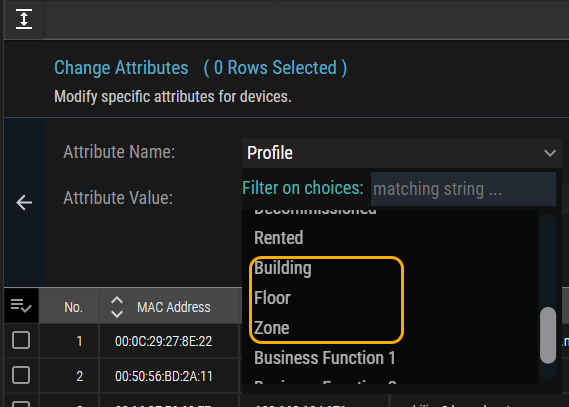
Figure 6: Bulk Action
- DDX Destination Fields: Users can now designate Buildings, Floors, and Wings as data exchange destinations, optimizing network communication and data routing for increased efficiency.
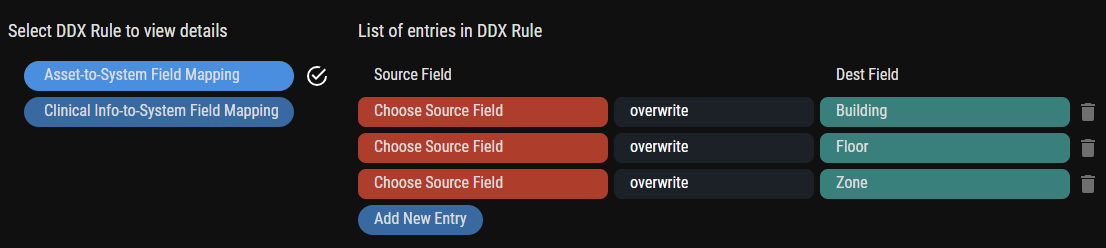
Figure 7: DDX Rule
- Device Details tab: Gain quick access to comprehensive device insights directly within the device detail panel, including Location, Building, Floor, and Zone.
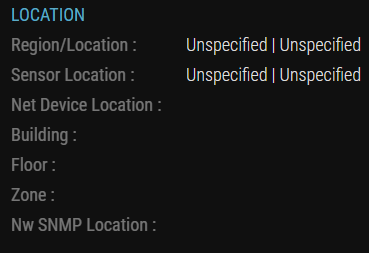
Figure 8: Device Details
- Location View: Ordr has integrated a Location View option within the Device Page, enabling users to seamlessly access Building, Floor, and Zone information from the device list panel.
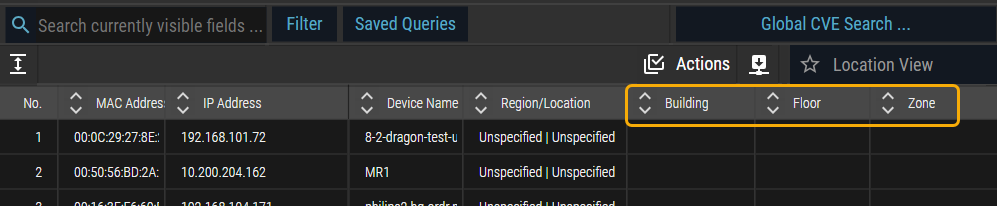
Figure 9: Location View
On-Demand Network Discovery
This release introduces the Trigger Network Discovery feature, which empowers users to initiate network discovery for a single or bulk device(s) using SNMP or CLI. With this feature, users can comprehensively view the device's current state, including its connected devices, IP address, category, and more. The discovery feature enhances network visibility and control, enabling users to identify and address potential security risks.
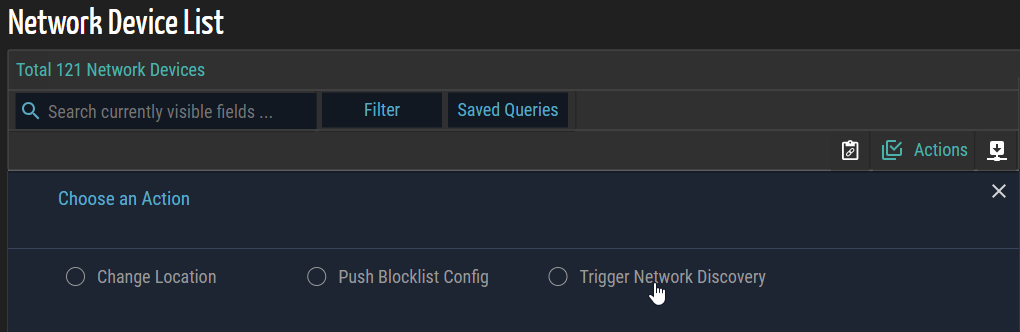
Figure 10: On-Demand Network Discovery
Enhanced Integration Card Views
This release introduces support for the Picture view (Tile) and Row view (List) of third-party services integration cards. The Tile cards offer users a brief description of the integration.
Both views include filtering functionality, and the list view also features sorting options. Specifically, users can sort items in the list view based on their preferences. If a user does not specify sorting criteria, the integration cards automatically organize the services by their names from A to Z.
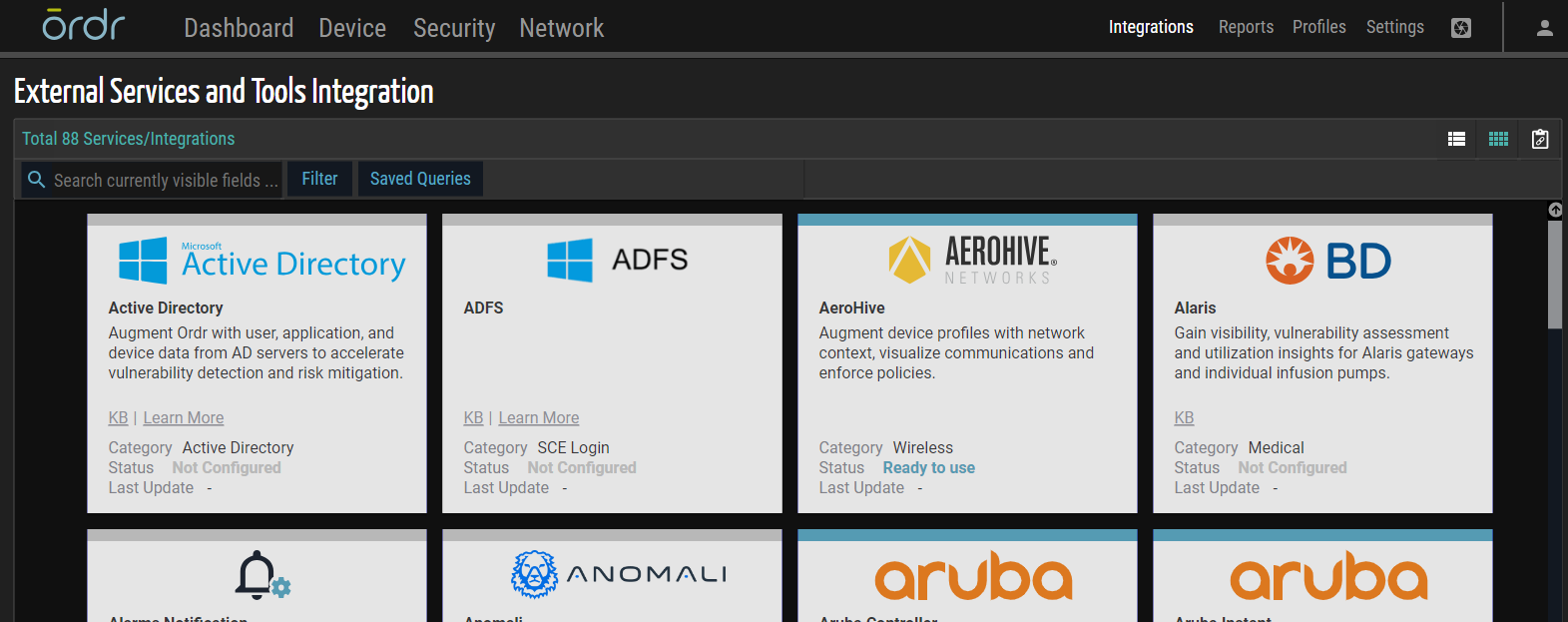
Figure 11: Integration – Tile View
Dashboard Tile Arrangement Options
In this release, Ordr introduces the ability to arrange Dashboard tiles and tiles in Connectivity Analysis in two distinct ways: alphabetically in ascending order and numerically in descending order. This enhancement grants users greater flexibility in organizing their dashboard content for efficient access and analysis.
- Alphabetical Sorting (Ascending Order): Users can now arrange dashboard tiles alphabetically in ascending order. This feature simplifies locating entries with familiar labels, streamlines navigation, and makes discovering specific information easier.
- Numerical Sorting (Descending Order): This Mode proves beneficial for identifying entries with the highest frequency of occurrences, assisting users in promptly recognizing critical issues, vulnerabilities, alarms, or devices with specific attributes that require immediate attention. This enhancement empowers users to prioritize their monitoring and management tasks effectively.
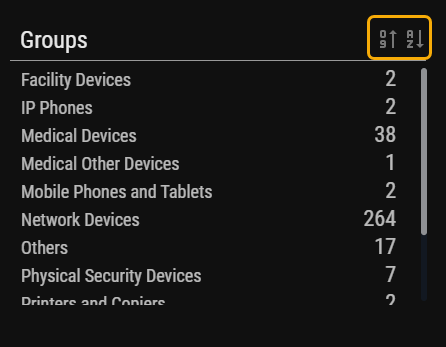
Figure 12: Tile Arrangement
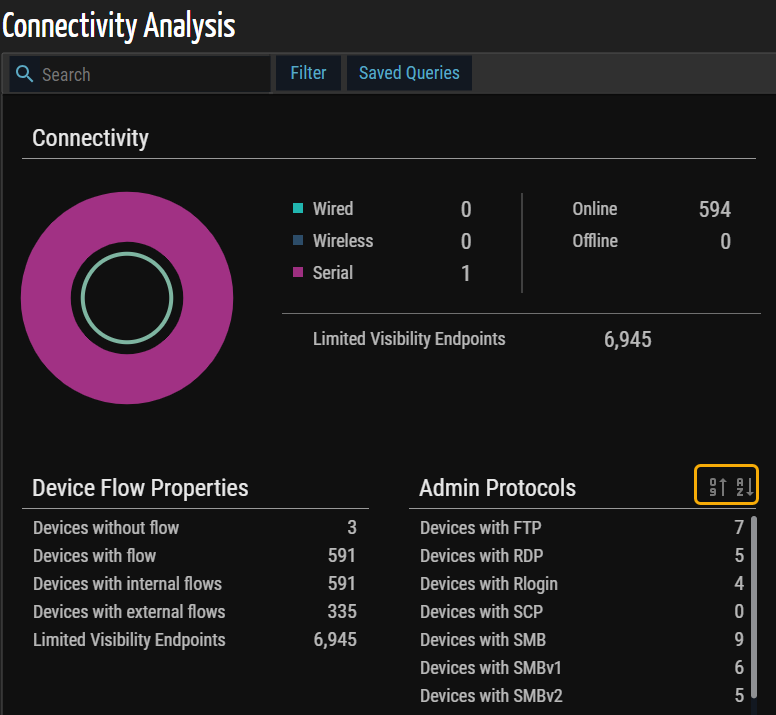
Figure 13: Connectivity Analysis – Tile Arrangement
Enhanced Device Detail
In this release, Ordr introduces five new informative column names for External and Internal (Limited Visibility) Traffic, enhancing the wealth of device data available to users. The new columns, namely Profile, Group, Location, Category, and Risk, have been added to peer devices, and this information also appears in the Neighborlist panel. This update gives users a more insightful and efficient device management experience, ensuring better-informed decision-making.
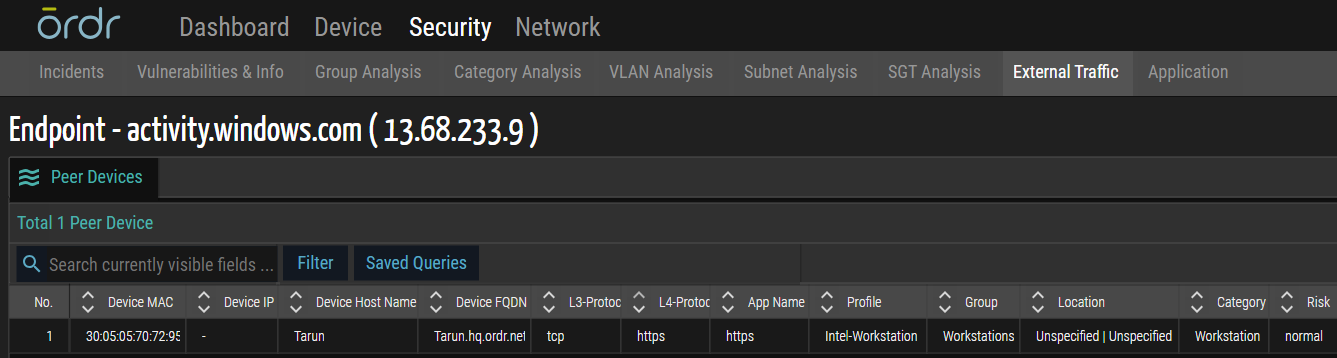
Figure 14: External Traffic
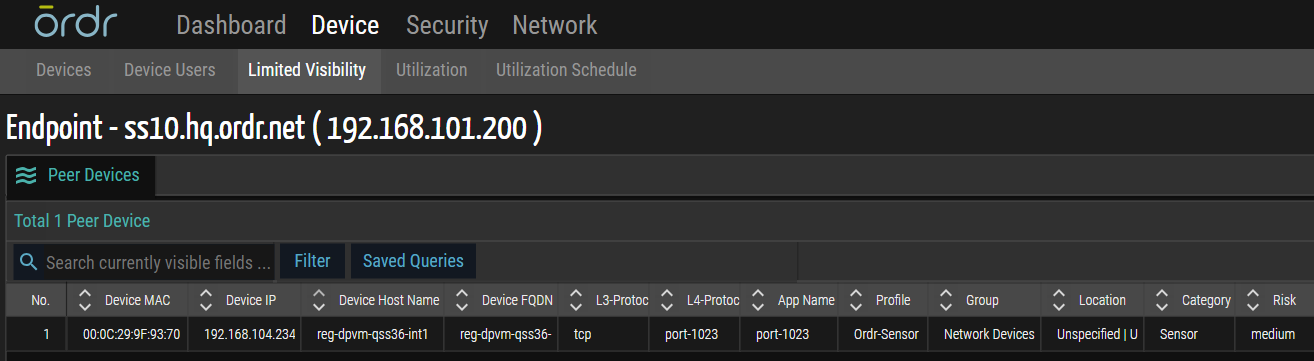
Figure 15: Limited Visibility
NIC Vendor Field Addition
In this release, Ordr introduces the NIC Vendor field to the Device Details page, offering users valuable information about network interface card vendors to enhance device management and network oversight.
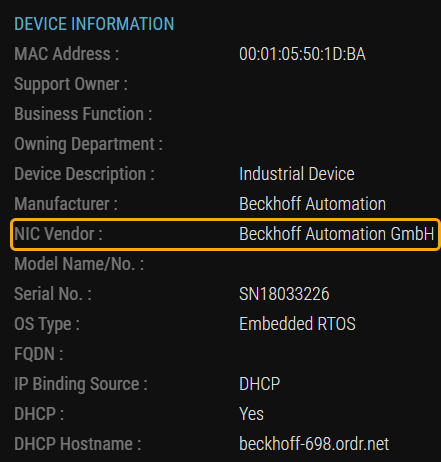
Figure 16: NIC Vendor Field
Customized CSV File Naming
In this release, Ordr introduces an enhancement to the user interface (UI). The UI dynamically retrieves customer information exclusively when the tenant name is incorporated into the 'config.tenant' table. When the tenant name becomes accessible to the graphical user interface (GUI), Ordr implements a seamless alteration. It automatically prefixes this crucial information to every CSV download. This not only simplifies the organization of downloaded data but also adds context, enhancing the overall user experience and data management within the system.

Figure 17: CSV File Naming
Improved Dashboard Search for Device Fields
In this release, Ordr has enhanced Dashboard functionality by enabling Search for all system-defined device fields. This improvement allows users to filter across many system-defined fields. Please note that integration and asset fields are not part of system-defined fields and are not included in this extensive Search.
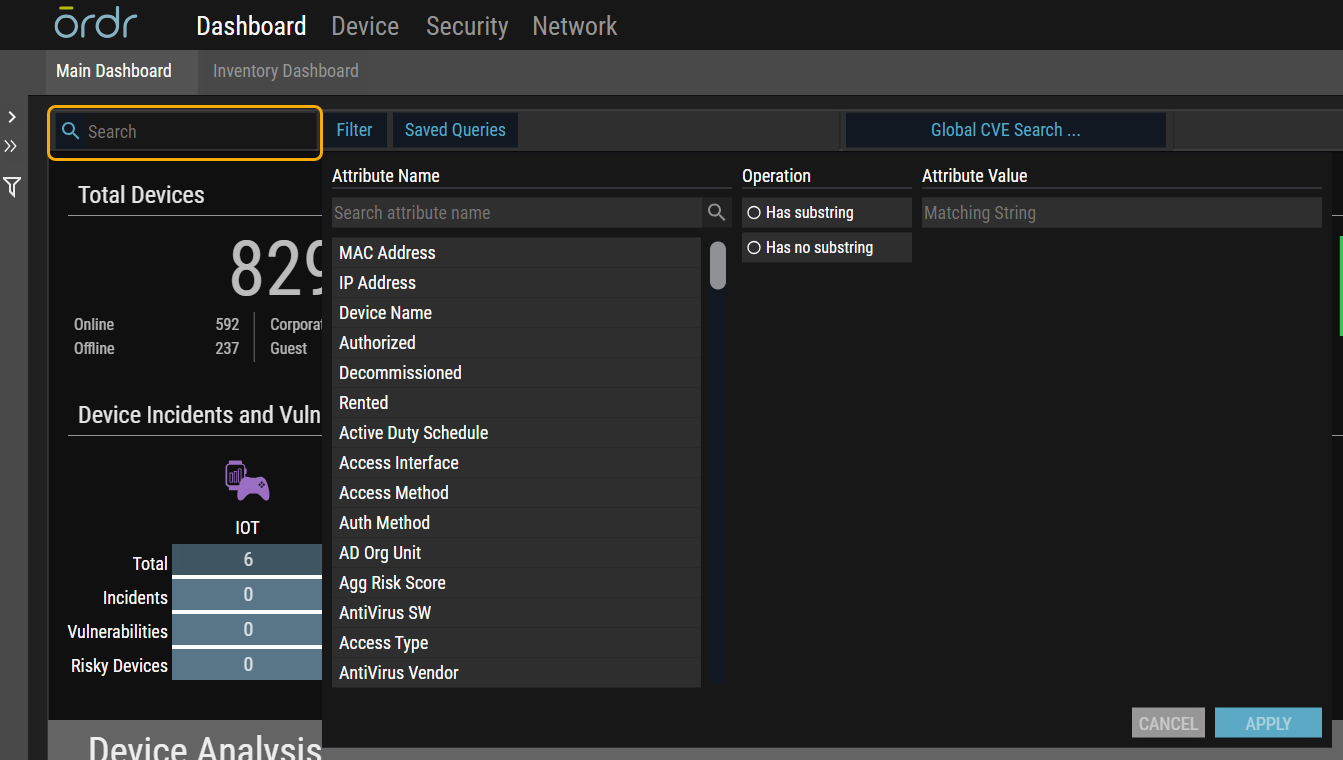
Figure 18: Dashboard Search
Background Task
In this release, Ordr introduces the Background Task feature, which presents users with a dynamic status and progress indicator for tracking the execution of lengthy operations. With this addition, users can have a seamless experience while executing long-running tasks within the tool.
The Background Task functionality allows users to initiate extensive processes without interrupting their primary workflow. The status and progress updates are displayed in real-time, ensuring that users remain informed about ongoing operations. This enhancement fundamentally transforms the user experience, enabling individuals to maintain high productivity levels by multitasking effortlessly.
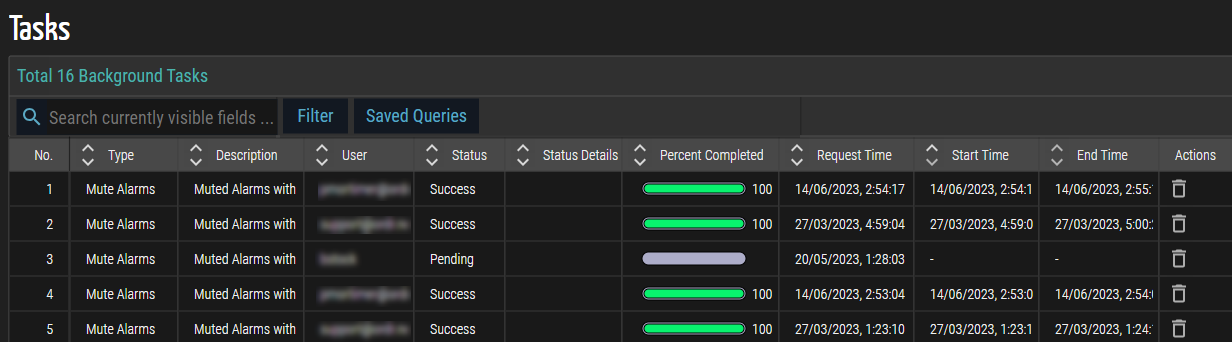
Figure 19: Background Task
Inventory Dashboard
This release introduces an Inventory Dashboard that presents devices based on categories in a picture grid view format. This categorization process is a fundamental organizational tool, facilitating the efficient management and tracking of various devices according to their hardware functions. Users can access the Inventory Dashboard from the menu bar under User Account > Inventory Dashboard.
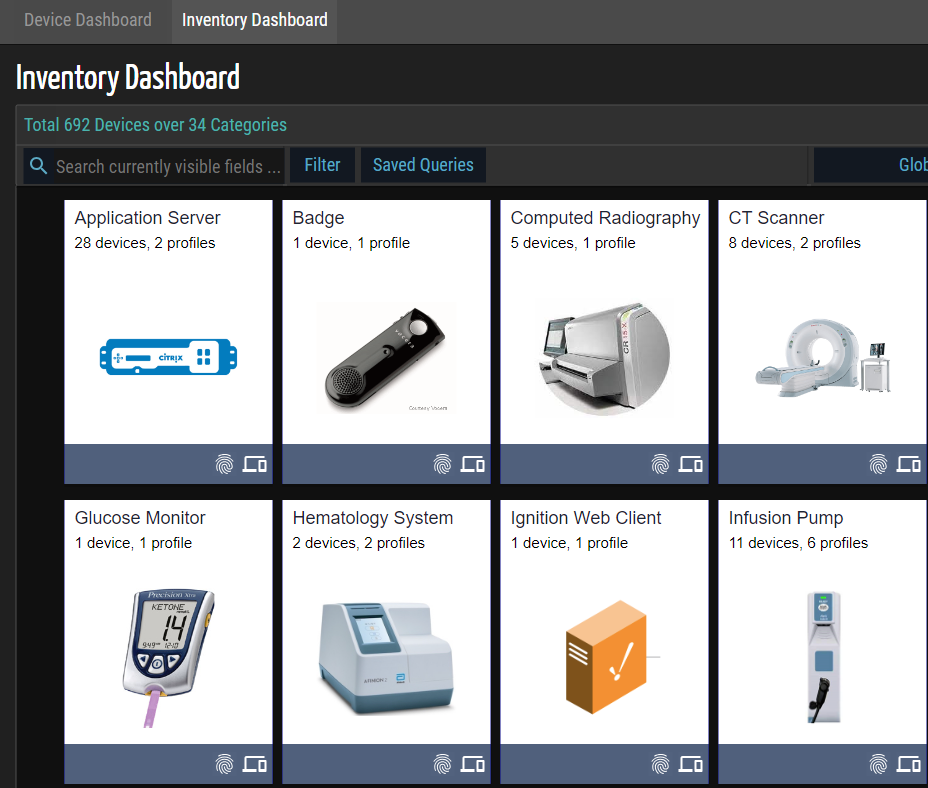
Figure 20: Inventory Dashboard
Introducing Basic and Advanced Modes
This release empowers users to select between two distinct modes for the Graphical User Interface (GUI): Basic and Advanced. These modes allow you to tailor your experience to your specific requirements without the need for a re-login.
Basic Mode provides users with a simplified interface. When selected, Basic Mode essentially mirrors the appearance and functionality of the SCE package control level set to Foundation. However, it is important to note that if your SCE package control is already limited to Foundation, enabling Basic Mode will have no visual impact and remain hidden.
On the other hand, Advanced Mode is designed for users who require a more feature-rich and comprehensive GUI experience. When you choose Advanced Mode, you can access a broader range of functionalities and settings, catering to users with SCE package control levels beyond Foundation.
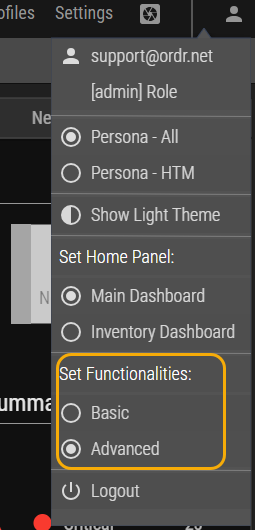
Figure 21: Basic and Advanced Modes
Global CVE Search
The Dashboard and Device pages now include a new Global CVE Search feature. This feature allows users to search for CVEs across all devices, regardless of Data shaper settings and performs a case-sensitive full-string match.
When a user changes their Persona, the search query is reset or cleared automatically. This simplifies the process of finding CVEs on different devices and enhances the usability of the Dashboard and Device pages.

Figure 22: Global CVE Search
OSIC Tab Enhancement
In this release, Ordr introduces a distinct tab and an informative info icon dedicated to the Ordr Software Inventory Collector (OSIC). These enhancements simplify OSIC access, providing users with a more intuitive and efficient way to manage and access crucial software inventory information.
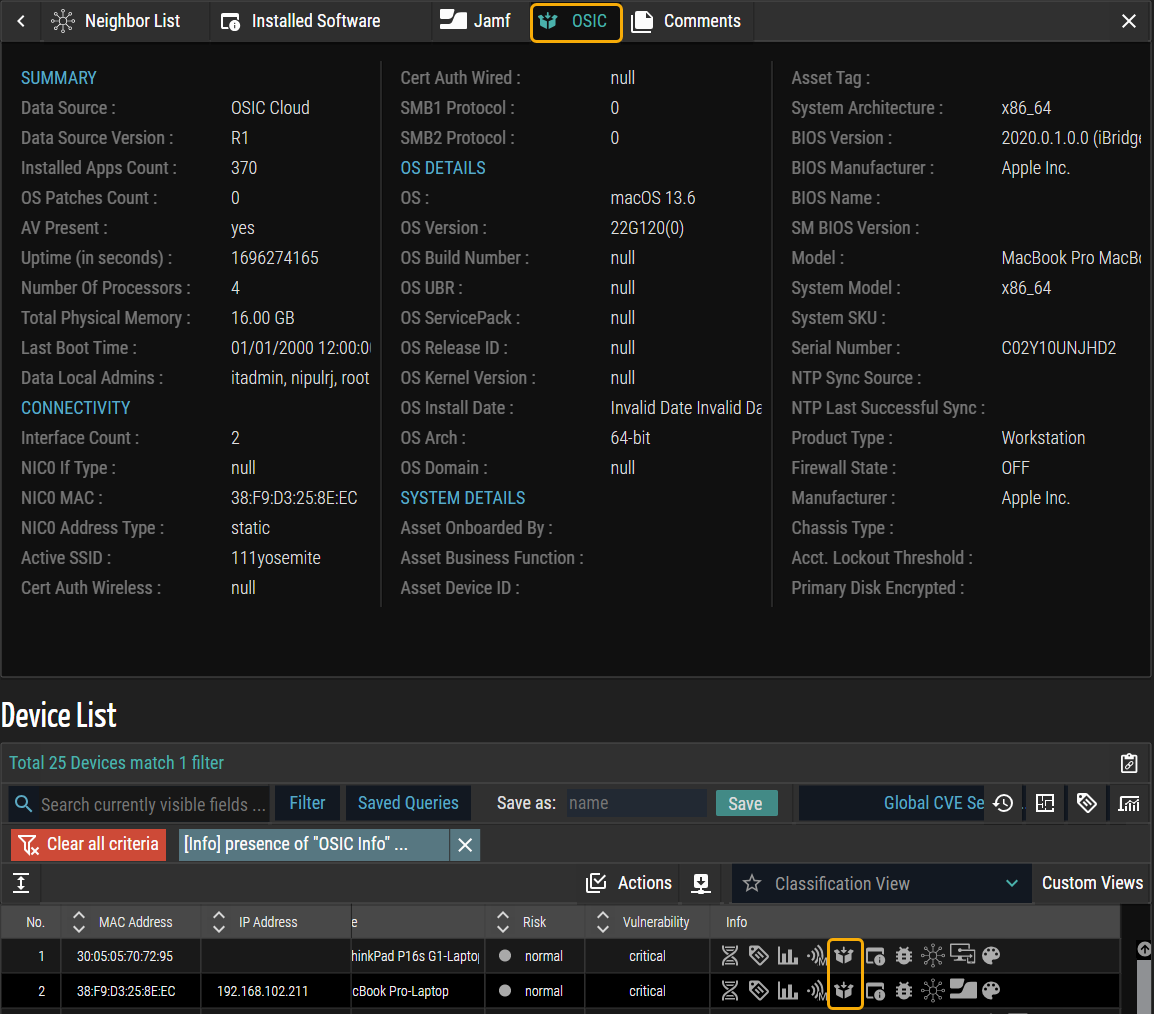
Figure 23: OSIC Enhancements
© 2023 Ordr. All Rights Reserved.