Bulk Actions
The Bulk action feature allows users to perform actions on multiple items or in batches simultaneously. Its design streamlines repetitive tasks and enhances efficiency by eliminating the need for individual actions on each item. Users can select multiple items and apply a single action to all of them at once, saving time and effort. Examples of bulk actions include deleting devices, changing locations, modifying VLANs, and other similar operations.
Multiple Device Actions
Add to NAC Quarantine/Blocklist
This action adds the selected devices to the NAC quarantine or blocklist. When users apply this action, ORDR sends a request to the configured NAC system or switch to isolate or block the devices from the network.
NOTE: If NAC is configured, ORDR sends all enforcement actions to the NAC system. If NAC is not configured, ORDR enforces policies directly on the switch, provided that network connectivity information is available for each device.
Add to Blocklist & Shutdown Ports
In addition to adding devices to a blocklist, this action also involves shutting down the corresponding ports or connections associated with those devices, further preventing any network communication.
Remove from NAC Quarantine/Blocklist
This action removes the selected devices from the NAC quarantine or blocklist. When users apply this action, ORDR sends a request to the configured NAC system or switch to restore network access for the devices.
Remove from Blocklist & Enable Ports
This action removes devices from a blocklist and enables the ports or connections associated with those devices, restoring network communication.
Generate Blocklist CLI
This action generates a command that users can execute through the Command Line Interface (CLI) on a target network device for automation or configuration purposes.
Change Location
This action enables the modification of the location attribute for multiple devices, indicating a physical change in their placement.
Change VLAN in NAC/Switch
This action allows you to assign a new VLAN configuration to one or more devices through the NAC system or directly on the Switch. By using this action, users can modify the network segment or VLAN assignment of devices, enabling dynamic network access control based on updated VLAN policies.
NOTE: The Add-to-Blocklist and VLAN enforcement features are supported only on Wired Cisco switches.
Change Attributes
This action facilitates modifying various attributes or properties of multiple devices. This action streamlines updating device-specific information and configurations, eliminating the need to make individual changes for each device separately. The attributes that can be modified include:
- Profile: This action allows users to modify the profile attribute of multiple devices. The profile represents a specific configuration or set of settings applied to the devices.
- Model Name: This action enables users to change the model name attribute of multiple devices. The model name refers to the specific model or type of device.
- OS Type: This action enables users to update the operating system (OS) type attributes of multiple devices. The OS type denotes the category or family of the operating system installed on the devices.
- OS Version: This action allows users to modify the operating system (OS) version attribute of multiple devices. The OS version represents the specific release or version number of the device's installed operating system.
- SW Version: This action enables users to change the software (SW) version attribute of multiple devices. The SW version refers to the software installed on the devices' specific release or version number.
- Criticality: This action permits users to update the criticality attribute of multiple devices. Criticality represents the level of importance or priority assigned to the devices based on their significance within the system or organization.
- Policy Profile: This action allows users to modify the policy profile attribute of multiple devices. The policy profile represents specific policies or rules applied to the devices.
NOTE: Devices associated with a policy profile are exempt from the purging process. Users must first disassociate these devices from the policy profile to facilitate purging. To do so, the user must initiate a bulk action against the target list, and the user must navigate to the Change Attributes section, select "Policy Profile", and then choose "Unassign Policy Profile". This sequence of steps enables all devices present in the list to become purgeable and thus eligible for removal during the subsequent purge.
- Classification Profile Lock: This action enables users to change the classification profile lock attribute of multiple devices. The classification profile lock represents the state of the classification profile being locked or unlocked for the devices.
- Authorized: This action permits users to update the authorized attribute of multiple devices. The authorized attribute represents whether the devices are authorized or approved for use within the system or organization.
- Building: This action allows users to modify the building attribute of multiple devices. The building attribute represents the physical location or building where the devices are situated.
- Floor: This action enables users to change the floor attribute of multiple devices. The floor attribute represents the specific level or floor within a building where the devices are located.
- Zone: This action permits users to update the zone attribute of multiple devices. The zone attribute represents a specific area or zone within a building where the devices are assigned or allocated.
- Support Owner: This action allows users to modify the support owner attribute of multiple devices. The support owner refers to the individual or team responsible for providing support or maintenance for the devices.
- Business Function: This action enables users to change the business function attribute of multiple devices. The business function represents the specific role or function of the devices within the organization.
Create Ticket
This action allows users to generate incident tickets for multiple selected devices. By applying this bulk action, users can streamline the process of raising tickets in an integrated ITSM platform (such as ServiceNow or Ivanti), ensuring a timely response to device-related issues.
Delete Devices
This action involves removing multiple devices from a system or network and permanently deleting their presence and associated data.
Fetch Installed Software Info
This action retrieves information about the installed software on multiple devices, providing details such as the software name, version, and other relevant data.
Download Installed Software/Resources (CSV)
This action allows downloading a CSV (Comma-Separated Values) file containing information about the installed software or associated resources on multiple devices.
Fetch Location On Floorplan
This action pertains to the retrieval of location information on a floorplan layout. It involves identifying the positions or placements of devices within a physical space, such as a building floor, depicted in a floor plan diagram.
Initiate Scan
This action triggers a scan or assessment process on multiple devices, usually aimed at identifying vulnerabilities, malware, or other relevant security concerns.
Analyze App Usage
This action involves analyzing or evaluating applications' usage patterns and behavior on multiple devices, providing insights into their performance or resource utilization.
Change Custom Tags
This action enables modifying or updating the custom tags associated with multiple devices, allowing for better organization or categorization.
Add Comment
This action allows users to add comments or notes to multiple devices, providing additional information, context, or instructions related to them.
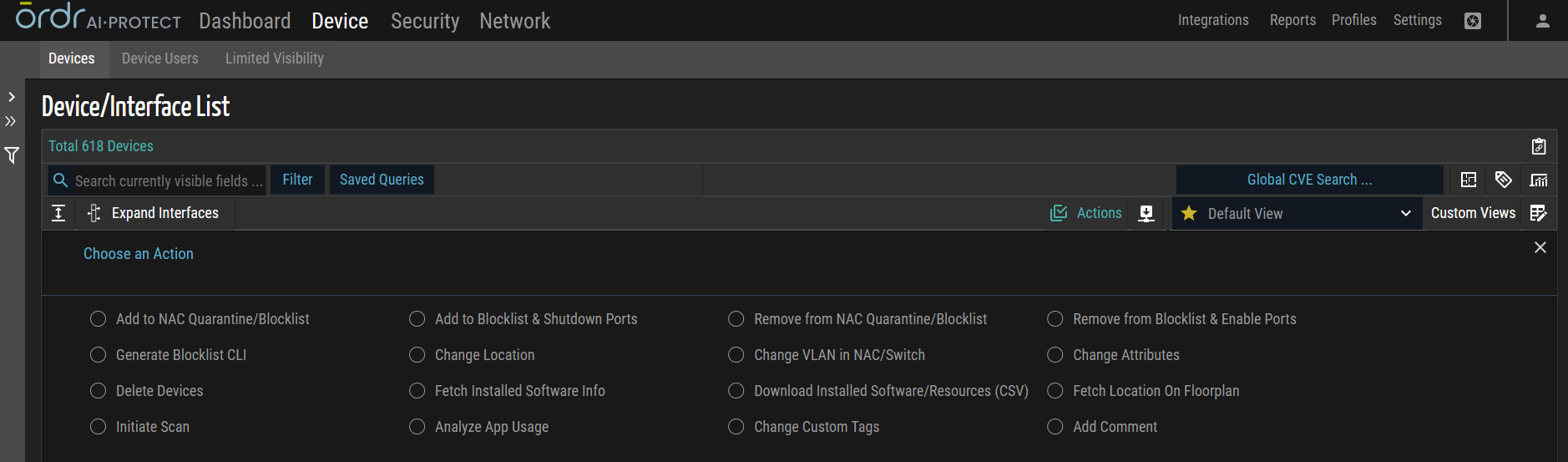
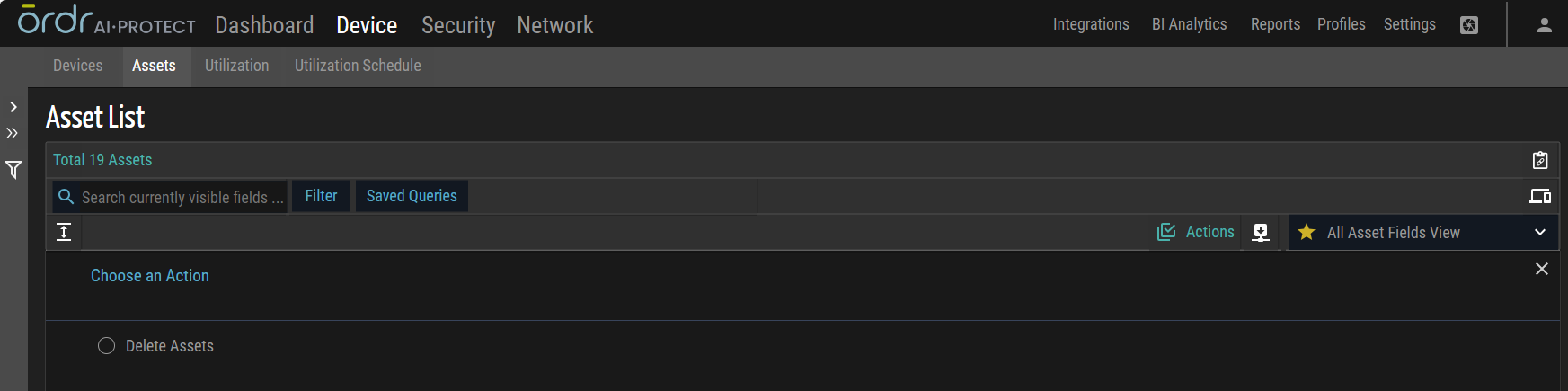
Multiple Asset Actions
Delete Assets
This action involves removing or deleting multiple assets from a system. This bulk action allows users to eliminate multiple assets simultaneously, permanently removing their presence and associated data.
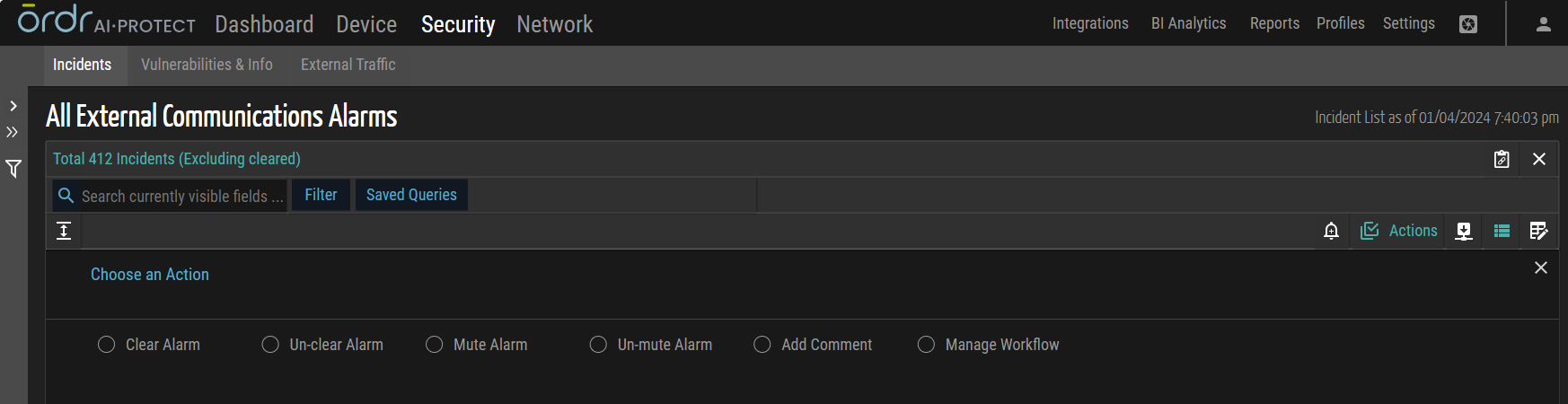
Multiple Incident/Vulnerabilities Action
Clear Alarm
This action involves removing or clearing alarms associated with multiple incidents or vulnerabilities. By applying this bulk action, users can dismiss or resolve the alarms, indicating that the corresponding incidents or vulnerabilities no longer require immediate attention.
Unclear Alarm
This action reactivates or marks alarms associated with multiple incidents or vulnerabilities as unclear. By utilizing this bulk action, users can indicate that the status of the incidents or vulnerabilities is uncertain or requires further investigation, prompting a renewed focus on those items.
Mute Alarm
This action temporarily suppresses or disables alarms associated with multiple incidents or vulnerabilities. This bulk action allows users to temporarily silence the alarms to prevent further notifications or alerts, allowing for a quieter monitoring environment.
Unmute Alarm
This action restores or enables alarms associated with multiple incidents or vulnerabilities that were previously muted. By applying this bulk action, users can reactivate the alarms, allowing them to receive notifications and alerts for those incidents or vulnerabilities once again.
Add Comment
This action allows users to add comments or notes to multiple incidents or vulnerabilities. Users can provide additional information, context, or instructions related to the items by utilizing this bulk action.
Manage Workflow
This action encompasses the oversight and control of the workflow processes within the system. Users can use this functionality to streamline and optimize the progression of tasks and activities within the workflow.
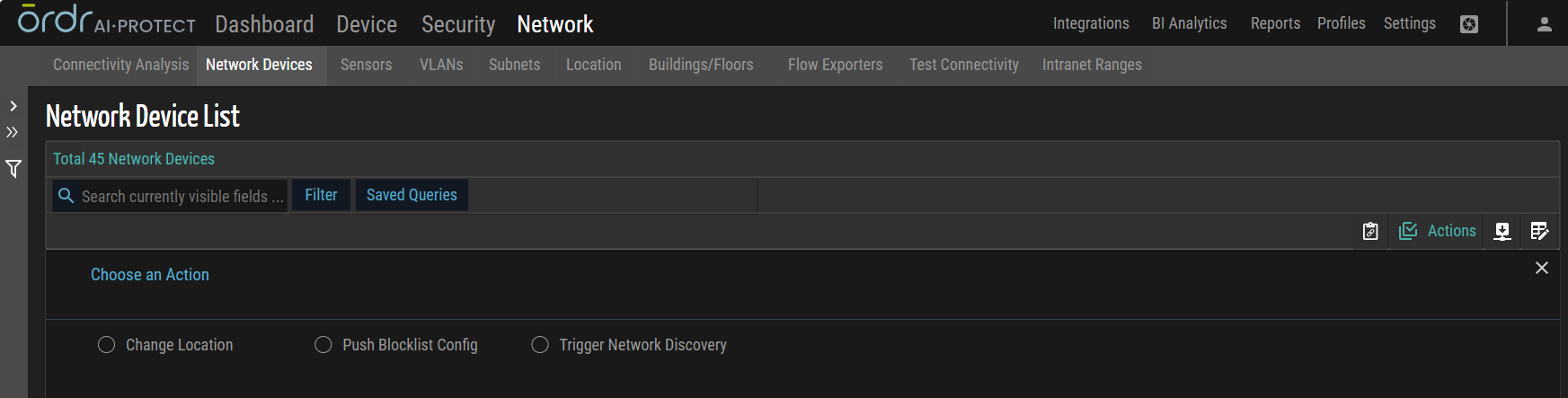
Multiple Network Device Actions
Change Location
This action allows users to modify the location attribute of multiple network devices simultaneously. By applying this bulk action, users can efficiently update the location information associated with the selected devices, indicating a physical change in their placement.
Push Blocklist Config
This action involves deploying or pushing a blocklist configuration to multiple network devices in a bulk manner.
Trigger Network Discovery
This action initiates a network discovery process on multiple network devices, utilizing SNMP or CLI protocols. By applying this bulk action, users can actively scan and identify other connected network devices, their attributes, and their relationships. If the checkbox is not selected, the action will attempt to use the configured CLI credentials first and, if necessary, fall back to SNMP for device discovery.
Multiple Sensor Actions
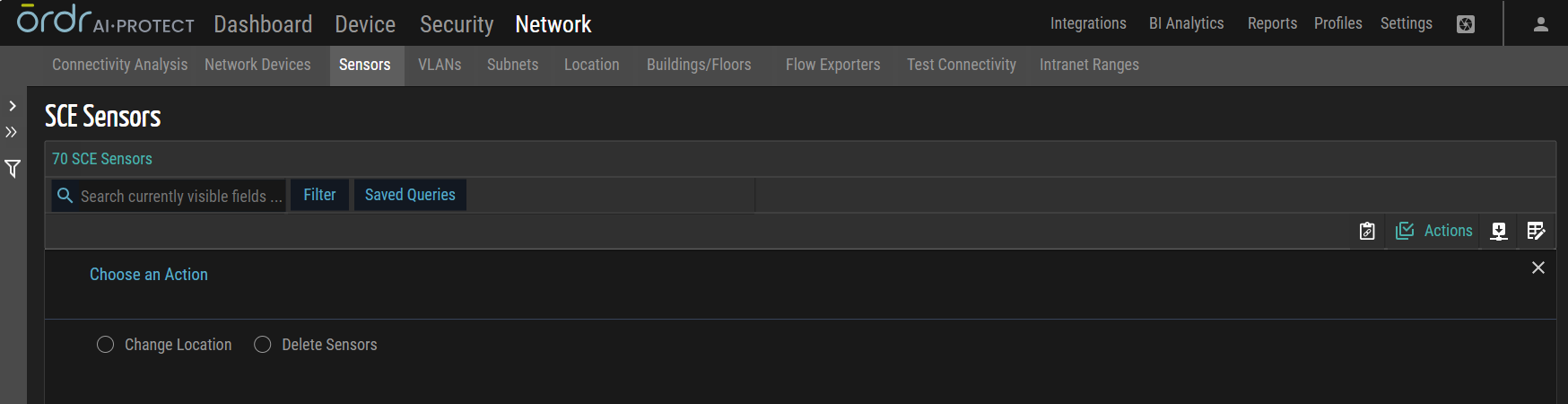
Change Location
This action enables users to modify the location attribute of multiple sensors simultaneously. By utilizing this bulk action, users can efficiently update the location information associated with the selected sensors, indicating a physical in their placement.
Delete Sensors
This action allows users to remove selected sensors from the system. By executing this function, users can effectively eliminate unwanted sensors, streamlining the sensor management process.
Multiple Location Actions
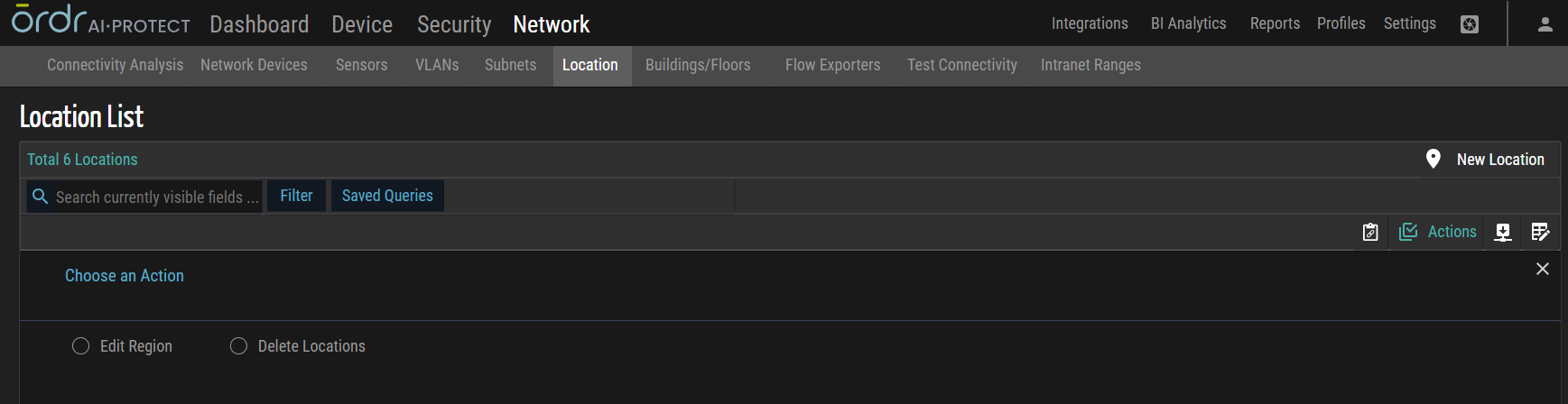
Edit Region
This action allows users to simultaneously modify the region attribute of multiple locations. By applying this bulk action, users can efficiently update the region information associated with the selected locations, indicating a geographical change in their categorization.
Delete Location
This action involves removing or deleting multiple locations from a system. This bulk action allows users to eliminate multiple locations simultaneously, permanently removing their presence and associated data.
Device/Policy Profile List Actions
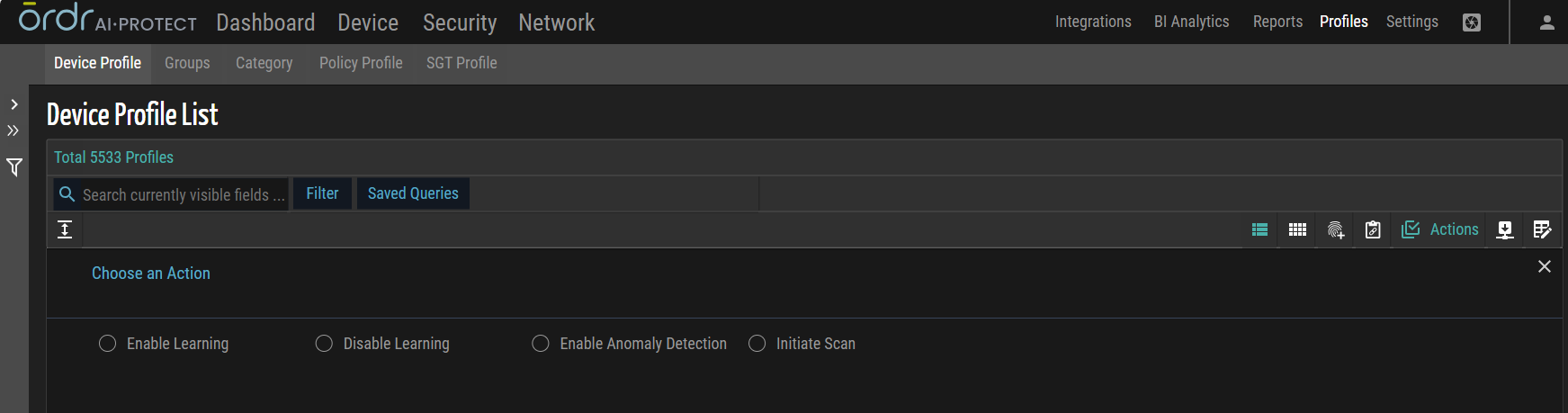
Enable Learning
This action enables the activation of learning modes for multiple profiles. By applying this bulk action, users can instruct multiple items to enter a state of learning, allowing them to gather information, analyze patterns, or adapt their behavior based on observed data or inputs.
Disable Learning
This action involves deactivating or disabling the learning mode for multiple devices. By applying this bulk action, users can instruct multiple items to stop computing their behavior based on observed data or inputs.
Enable Anomaly Detection
This action enables the activation of anomaly detection for multiple devices. Users can instruct multiple items to actively monitor and identify any abnormal or suspicious behavior within a system or network by utilizing this bulk action.
Initiate Scan
This action triggers a scan process across multiple profiles. This bulk action allows users to initiate a comprehensive scan or assessment of the selected profiles to identify vulnerabilities, detect security risks, or gather relevant information.
Device/Policy Profile Flow List Actions
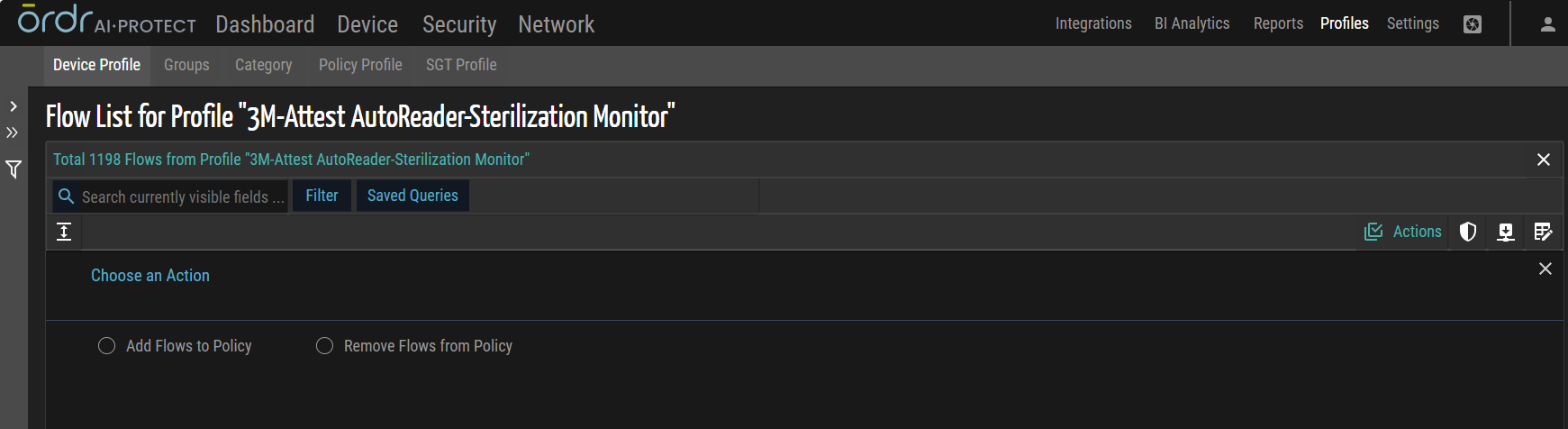
Add Flows to Policy
This action involves adding multiple flows to a policy for specific profiles. By applying this bulk action, users can efficiently include a predefined set of flows into the policy associated with the selected profiles.
Remove Flows from Policy
This action entails removing multiple flows from a policy for specific profiles. By utilizing this bulk action, users can effectively exclude a set of flows from the policy associated with the selected profiles.
Policy Profile Actions
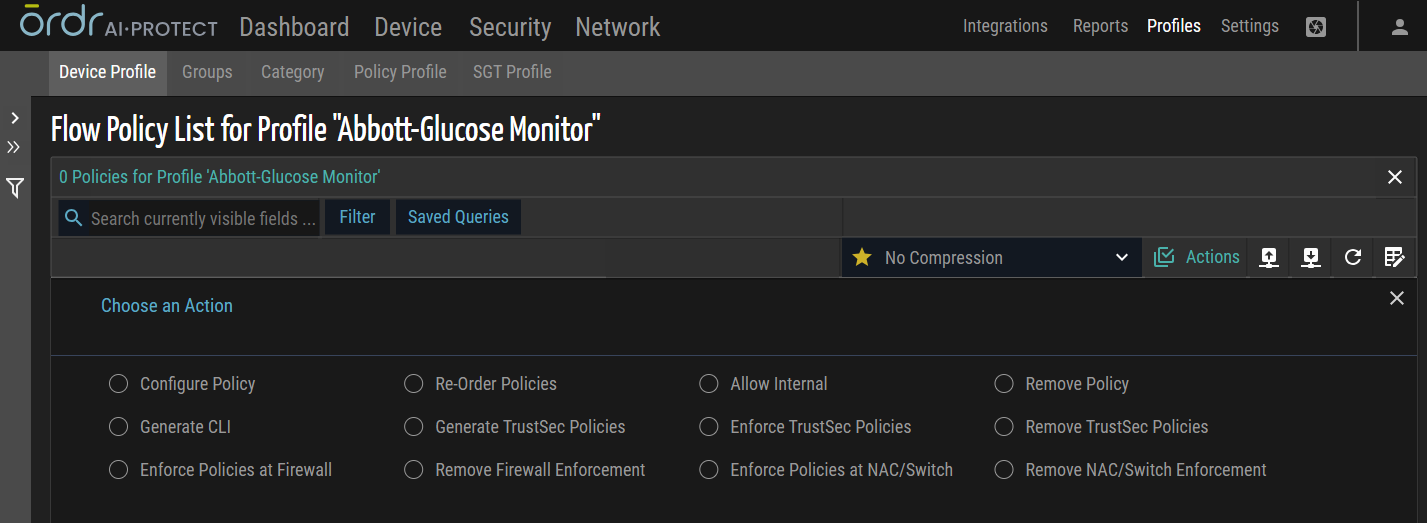
Configure Policy
This action involves configuring the policies for the flow policy list of a specific profile. By applying this bulk action, users can efficiently add new policies within the profile.
Reorder Policies
This action allows users to rearrange the policies' order within a specific profile's flow policy list. By utilizing this bulk action, users can change the priority or sequence of policies to determine the order in which they are evaluated and enforced for incoming or outgoing network traffic within the profile.
Allow Internal
This action permits or allows internal network traffic within the flow policy list of a specific profile. By applying this bulk action, users can add intranet subnets to policy within the policy profile in the switch enforcement.
Remove Policy
This action involves deleting or removing policies from the flow policy list of a specific profile. Users can eliminate unnecessary or obsolete policies by utilizing this bulk action, ensuring a streamlined and updated set of rules for managing network traffic within the profile.
Generate CLI
This action generates Command Line Interface (CLI) commands based on a specific profile's configured flow policy list. By applying this bulk action, users can automatically generate CLI instructions that reflect the defined policies for all vendors, simplifying the implementation of the policies on network devices.
Generate TrustSec Policies
This action generates TrustSec policies based on a specific profile's configured flow policy list. By utilizing this bulk action, users can automatically create TrustSec policies that align with the defined flow policies, facilitating secure access control and enforcement based on Cisco TrustSec principles.
Enforce TrustSec Policies
This action enforces TrustSec policies within the flow policy list of a specific profile. By applying this bulk action, users can activate the TrustSec policies to ensure the proper application of security measures, such as identity-based access control, within the network flow for the profile.
Remove TrustSec Policies
This action involves removing or disabling TrustSec policies within the flow policy list of a specific profile. By utilizing this bulk action, users can deactivate TrustSec policies that are no longer needed or require modification within the network flow for the profile.
Enforce Policies at Firewall
This action enables enforcing policies at the firewall within the flow policy list of a specific profile. By applying this bulk action, users can ensure that the defined policies are enforced at the firewall level, controlling network traffic based on the specified rules and restrictions.
Remove Firewall Enforcement
This action disables the enforcement of policies at the firewall within the flow policy list of a specific profile. By utilizing this bulk action, users can remove the firewall-level enforcement of policies, allowing network traffic to flow without the restrictions or rules set at the firewall level.
Enforce Policies at NAC/Switch
This action activates the enforcement of policies at the NAC/Switch-level within the flow policy list of a specific profile. By applying this bulk action, users can ensure that the defined policies are enforced through NAC or Switch-level, managing network traffic based on the specified rules and configurations.
NOTE: If NAC is configured, ORDR sends all enforcement actions to the NAC. If NAC is not configured, ORDR enforces policies directly on the switch, provided that network information is available for each device.
Remove NAC/Switch Enforcement
This action deactivates the enforcement of policies at the NAC/Switch-level within the flow policy list of a specific profile. By applying this bulk action, users can remove the NAC/Switch-level enforcement of policies, allowing network traffic to flow without the restrictions or rules set at the NAC/Switch-level.
Multiple Account Actions
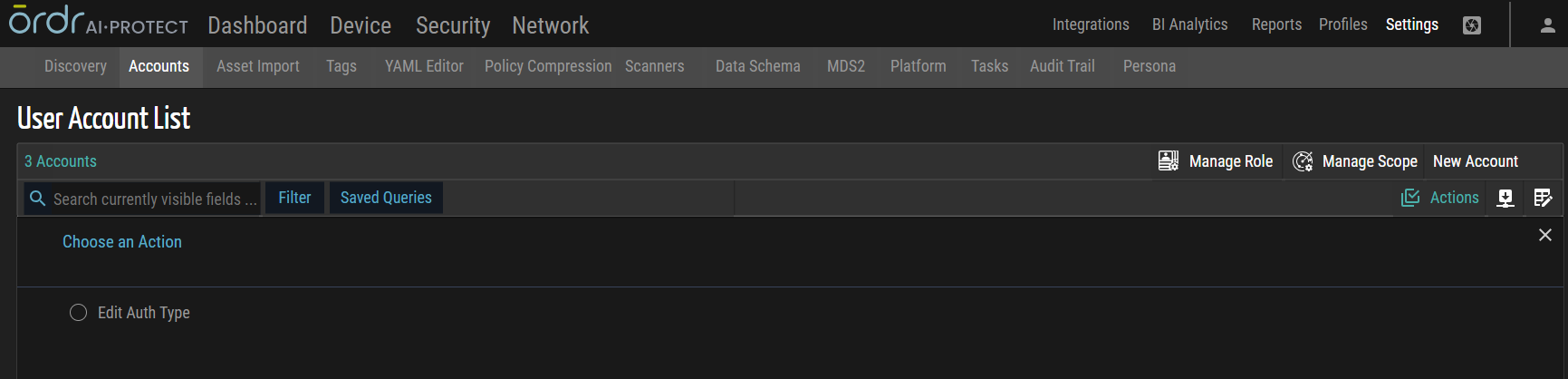
Edit Auth Type
This action allows users to simultaneously modify the authentication type for multiple accounts, specifying whether the authentication should be based on external, internal, or external/internal factors.
Scanning Device Actions
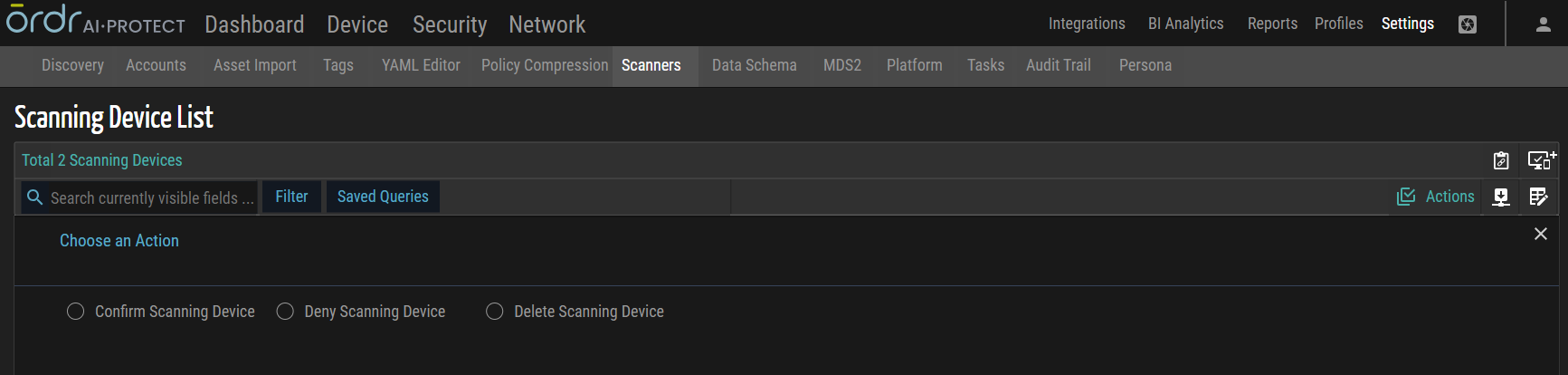
Confirm Scanning Device
This action confirms or verifies the status of multiple scanning devices. By applying this bulk action, users can validate and approve the scanning devices, ensuring they are recognized as legitimate.
Deny Scanning Device
This action rejects or disapproves multiple scanning devices. Users can invalidate and deny the scanning devices by utilizing this bulk action, indicating that they are not authorized or recognized as scanners.
Delete Scanning Device
This action involves removing or deleting multiple scanning devices from the system or database. By applying this bulk action, users can eliminate the scanning devices from the scanner group/category.
Bulk Actions Execution
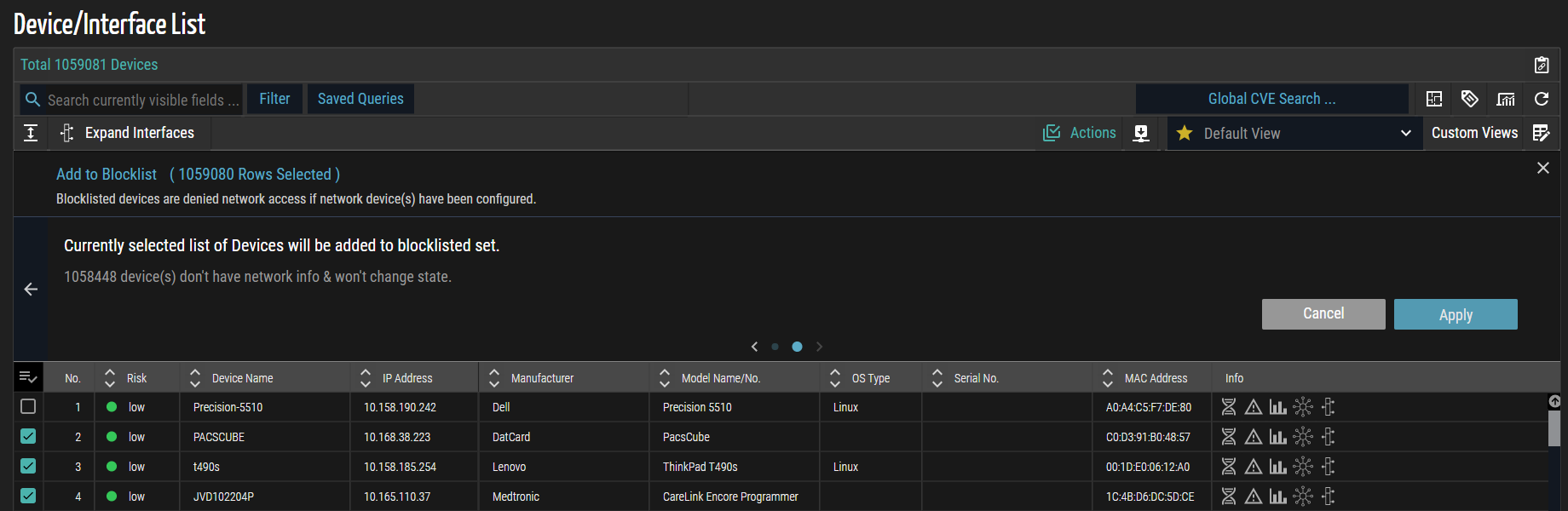
- Identify the bulk actions available.
- Click
 Actions.
The Choose an Action panel appears. The 'Perform Action on Multiple Devices' bulk action is selected in this example.
- Choose an action from the list.
- Select the check box(es) next to the list of records to which you want to apply the action, as shown in the below screenshot.
NOTE: Selecting check boxes does not apply when selecting the Generate Blocklist CLI action.
- Follow the on-screen instructions and then click Apply.
© 2026 ORDR. All Rights Reserved.